Dialog “Print Diagram”
All the contents of a diagram can be printed with the command Print.
The dialog can be opened:
- By clicking on the background of the diagram and selecting the context menu command Print.
The dialog
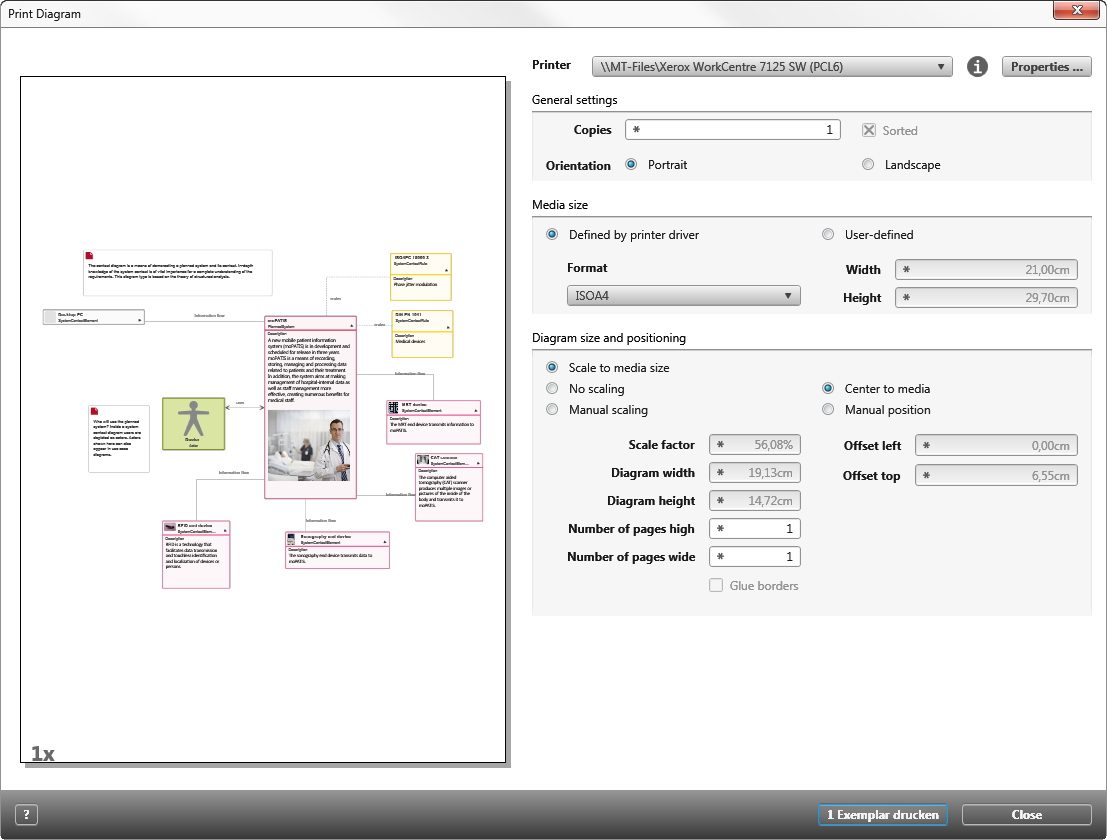
Printer The current standard printer will be displayed in the drop-down menu.
Properties This button opens a Windows dialog where the properties of the current standard printer can be changed.
General settings
Copies Enter the amount of copies to be printed.
Sorted Activate this option to sort the printed diagram when printing multiple copies. The difference between sorted and unsorted is:
- Sorted: Sorted documents are printed as complete documents (1, 2, 3 … 1, 2, 3 …).
- Unsorted: Unsorted documents are printed page for page (1, 1, 1 … 2, 2, 2 … 3, 3, 3 …).
Orientation Specify whether the diagram should be printed in landscape or portrait format.
Media size
Defined by printer driver
Format All formats that are supported by the connected printer will be displayed In a drop-down menu.
User-defined
Width/ Height When the option User-defined is activated, the height and width of the printed diagram can be specified.
Diagram size and positioning
Scale to media size The diagram will be expanded as wide as the selected page format allows.
No scaling Activate this option to print the diagram in its original size. The diagram will be printed on multiple pages if necessary.
Manual scaling Activate this option to manually determine the printing size. Activating this option enables the following options:
| Scale factor | Proportional scaling of the diagram can be entered here. After exiting this screen, the diagram height and width will be automatically applied. |
| Diagram width | The width of the diagram can be set here. After exiting this screen, the diagram width will be automatically applied. |
| Diagram height | The height of the diagram can be set here. After exiting this screen, the diagram height will be automatically applied. |
| Number of pages high/wide | Specify how to divide the printed diagram. Specify the height of the diagram with Number of pages high, and the width with Number of pages wide. This option could be used, for example, to generate a diagram in poster format. |
| Glue borders | This setting helps to assemble multiple pages. It becomes available when a higher value than 1 is entered under Rows or Columns. |
Center to media If this checkbox is marked, the diagram will be printed in the center.
Manual position Activate this option to manually specify the position of the diagram. When this option is activated, the position of the diagram can be entered under Offset left and Offset top.
Hint
The results of your changes will only become visible in the preview when it is updated. Click on the update button in the lower right of the preview: