
Dialog “Create Persona”
A persona represents a user group with the same goals, interests or wishes. Even if it is a fictitious figure, you can use a persona to make the behavior and expectations of a future user visible.
You create personas:
- in a use case diagram via the Create Persona button
- via the context menu of a package with Create / Persona
The dialog
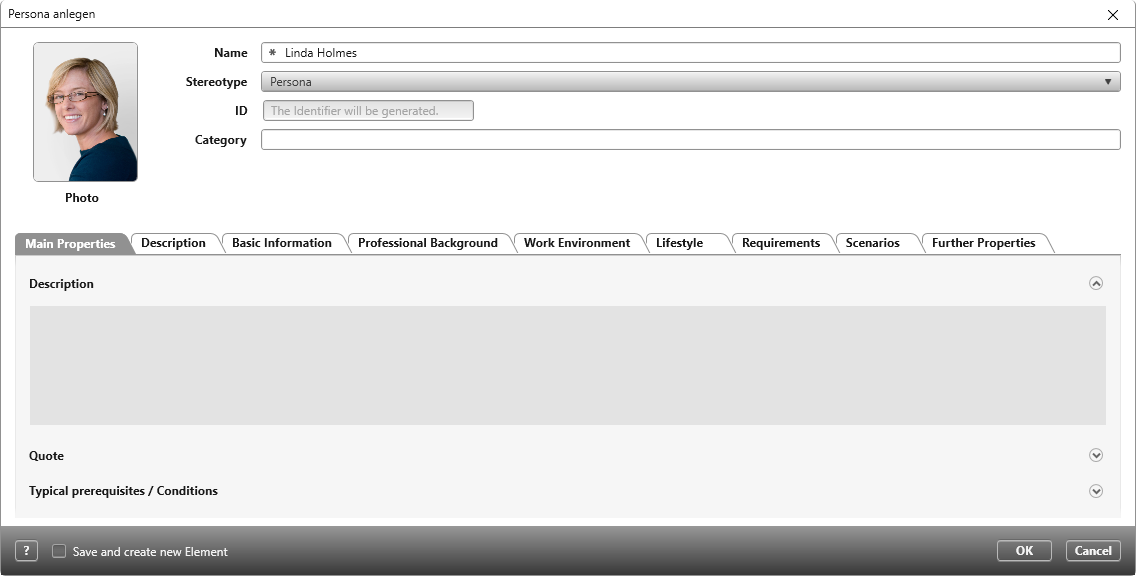
Name Enter the name of the persona.
Stereotype Here you can change the standard stereotype of a persona.
Category Enter the primary activity of the persona here in short form.
Tab “Main Properties”
Description Characterize the persona briefly and concisely; e.g.: How old are they? What is their profession? What are their special characteristics?
Quote Is there a quote with which the persona can identify particularly well?
Typical prerequisites / Conditions Here you specify the demands the persona has on themselves and their work and which conditions they are subject to.
Tab “Description”
Detailed description Here you can describe the persona in detail. Give details about work, lifestyle and interests. Outline the daily routine of the persona.
Tab “Basic Information”
Date of birth Here you can enter the age of the persona.
Marital status Specify whether a persona is married, single or in a stable relationship.
Children If the persona has children, you can enter their name and age here.
Address Enter here in which city the persona lives and/or works.
Ambitions What private ambitions does the persona have? For example, do they want to start a family? Would they like to buy a house?
Tab “Professional Background”
Occupation Specify here which occupation the persona has and which position they hold in the company.
Employer Here you can specify the company where the persona is employed.
Education Here you can enter which school and professional education the persona has. Have they completed any internships? What degree courses did they take? Where have they worked so far?
Career goals Enter the perspective the persona is striving for here. For example, do they want to lead a project or a team?
Experience Specify here what experience and knowledge the persona has.
Tab “Work Environment”
Work environment Describe the persona’s workplace here. Do they have their own office? How many colleagues do they share the room with? etc.?
Preferred forms of communication How does the persona communicate? Do they prefer direct contact with colleagues or do they communicate via e-mail etc.?
Team player skills Here you can specify whether the persona is more of a lone fighter or whether they prefers working in a team. How do they behave towards their colleagues in theirr daily work?
Occupational interests Here you indicate which topics the personas are particularly concerned with. Which Internet pages are their favorites? Which professional journals do they read?
Technical equipment at work Here you can enter which technical equipment the personas uses professionally.
Technical Equipment at home Here you can enter which technical equipment the persona uses privately.
Tab “Lifestyle”
Financial status Here you can indicate whether the persona is financially well secured or whether they have financial burdens. Are they the sole breadwinner or is the partner also employed?
Residence Here you can indicate, for example, whether the persona lives in a house or apartment.
Hobbies Indicate here which activities the persona is particularly intensively involved with in their free time.
Interests Enter here what the persona “likes”. Do they like to travel and where? What music do they listen to, what books do they read? Do they participate in cultural activities? Do they do sports?
Tab “Requirements”
Use the Plus button here to enter the requirements of the persona.
Tab “Further Properties”
IsPatternContext Select the check box if it is part of a pattern – the element is automatically defined and stored as a content element.
IsPlaceholder Select the check box if it is part of a pattern – the element serves as a placeholder that can be overwritten when a pattern is applied.