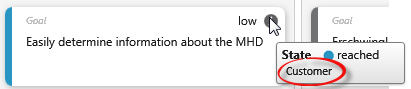
Version 6.2 and higher
Dialog “Create Kanban Board”
You can use the view to visualize the editing process of individual elements, such as requirements or test cases. You use columns to map the phases (in process, in realization, completed) so that you can see at a glance how quickly, for example, requirements are implemented or whether something is jammed at a point. The individual elements are displayed as tiles within the columns.
The dialog can be opened:
- via the context menu of a package with the command Create other/ Kanban Board
The dialog
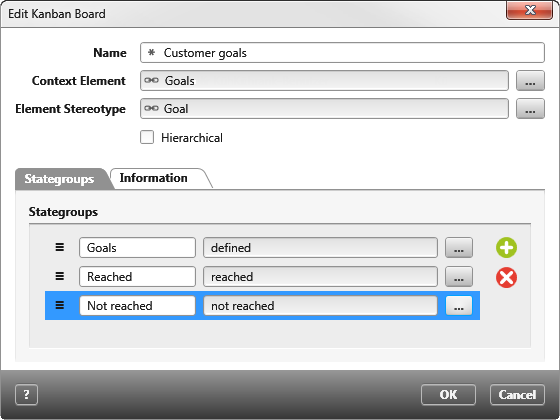
Name Name the Kanban Board.
Context Element Use the […] button to specify the package that contains the elements to be displayed.
Element Stereotype Use the […] button to select a stereotype to be displayed on the board from the following dialog.
Hierarchical Select this option if the selected package contains other packages and their contents are also to be taken into account.
Tab “Stategroups”
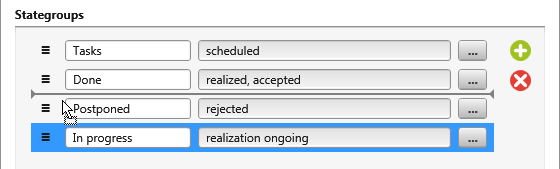
Via the plus button you create columns which are displayed in the Kanban Board. In the first field you enter the column name / ranges and via the […] button you enter the states which are to be considered in the column.
You can move the columns using Drag & Drop.
Tab „Information“
If required, further information can be displayed.
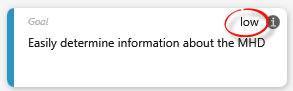
Short information Use the dropdown menu to select a property. It is displayed to the left of the i button.
User Use the dropdown menu to select the user type to be displayed. You are only offered a selection if employees can be assigned to the selected element (for example, requirement, test case, and so on). If initials were entered for the staff member, then these are displayed in the view. Otherwise, an user abbreviation is generated from the name and displayed.
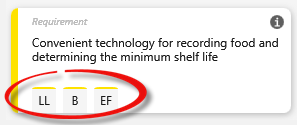
Tooltip Use the dropdown menu to select a property. It is displayed when you hover over it using the i button.