
Dialog for ‘Edit Settings’
In this dialog, you can configure the tool’s settings in regard to region, language, work availability, public holidays and speech recognition.
You must be a system administrator to make these cross-project and organization-wide settings.
Open the dialog:
- via the vertical toolbar, then select System → Settings → General Settings
The Dialog
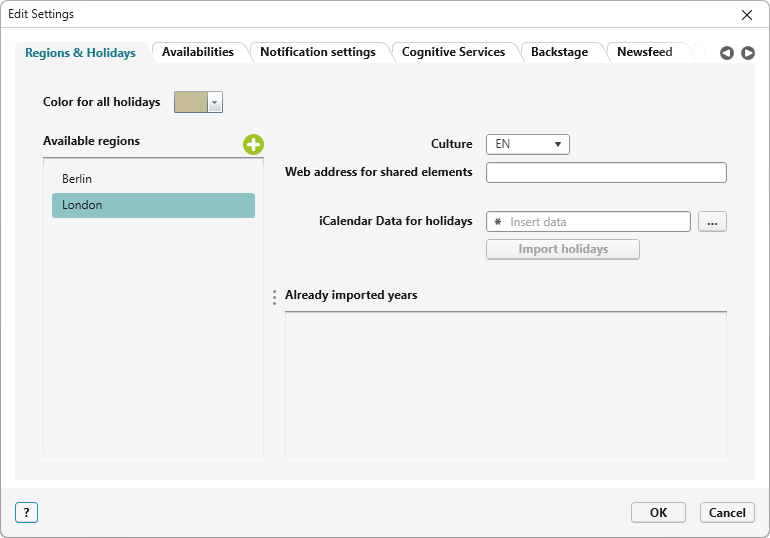
Regions & Holidays
Here you specify which regions (e.g. federal states, countries etc.) and holidays are displayed in the project and employee calendar.
Color for all holidays Select the color to be used to mark public holidays in calendars.
Available regions Use the plus button to create regions. Double-click to enter the editing mode and adjust the name of the new entry. A click on the red delete button removes the corresponding entry from the list.
Culture Here you can assign a language to the region. Only German and English are available.
You can set which region an employee belongs to in the editing dialog. When sending automated e-mails, the employee receives an e-mail with German or English text according to the region and language set.
Web address for shared elements Here you can specify a web address (web client) for (each) created region, which is to be used when e-mails are sent via state machine. This gives you the possibility to offer separate web service addresses for different locations.
iCalendar Data for holidays Holidays are imported via calendar files. Select the desired file (*.ics). In the subsequent dialog you can specify in detail which public holidays are relevant for your organization. You can use the Import holidays command to import the selected entries.
Already imported years Shows which public holidays are already available for the selected region in your organization. As of version 8.8, the imported holidays can be transferred to the employee and project calendars.
Tab “Availabilities”
On the Availabilities tab page, you define the typical types of working time and non-working time for your organization/project, such as company holidays, training courses, and so on. If you later enter an internal training course in the project and employee calendar, for example, this is highlighted in the calendar.
Types of availability Clicking on the plus sign adds a new entry to the list. Double-click on the new entry to enter the editing mode and change its name. A click on the red delete button removes the corresponding entry from the list.
Color For the selected entry, select the color that is to be used to indicate this type of availability in calendars. Also specify whether the day is a working day or a non-working day.
Description If required, you can make further specifications about the type of availability here.
Tab “Cognitive Services”
AI assistant and text-based quality assessment
To use the AI features, you must set up Docker containers. microTOOL provides a Docker image that allows you to access an AI database. To take full advantage of the AI functionality, you will also need a cloud account (e.g., with Google or OpenAI). Further information is available upon request in a separate document.
Activate cognitives services för AI assistants and quality assessment
This option enables the settings for text-based quality checking and AI assistants.
Address Enter the address of the server where the Docker container is running.
Port Enter the port configured for the server.
Text-Based Quality Check
With the text-based quality check, you can check requirements for simple quality criteria:
- Whether the requirement name is phrased as a complete sentence
- Length of the requirement name
- Whether the requirement name is phrased in the active voice
- Whether the name contains general, vague references to quantity or time
- Does the name contain nouns whose meaning is ambiguous
and complex quality criteria:
- Spelling and grammar of the requirement wording
- Are there similarities to existing requirements?
- Are there contradictions with existing requirements?
- Clarity of the requirement wording
have it reviewed.
Set up database Click the button to transfer the existing requests to the database. In the output, you will get a feedback that the database has been set up. Requests that are created after the setup are automatically transferred to the database.
Update service data Updates the connection to the Docker container following configuration changes. The container must be running for the API information (service, model, and API key) to be transferred to it.
Service Use the dropdown menu to select a platform to be used for text-based quality checking of requirements. objectiF RM supports the Vertex AI platform from Google Cloud and OpenAI. If you do not have a cloud account or do not wish to use one, only a limited set of features will be available to you.
AI features for the specified platform:
- Checking the wording of the requirement name (sentence structure, length)
- Checking the spelling and grammar of the requirement wording
- Checking for similarity to existing requirements
- Checking for contradictions with existing requirements
- Checking the clarity of the requirement wording
AI functions without specifying a platform:
- Check that the requirement name is phrased as a sentence in the active voice
- Check the length of the requirement name
- Check for general, vague quantities or time specifications in the requirement name
- Check for nouns in the requirement name whose meaning is ambiguous
- Check for similarity to other requirements regarding the name and description
Please note that when using Vertex AI and OpenAI, the data you enter is forwarded to the respective companies for processing.
Vertex AI Configuration
Vertex AI is an AI platform provided by Google Cloud. You will need a Google Cloud account and a project set up.
Project ID Enter the ID of the Google Cloud project here.
Service region Enter the service region of the Google Cloud project here. You can find the region in the Google Cloud dashboard under “Region.”
Authentication file Use the […] button to select the downloaded authentication file. The file contains the information required for the API call. (To create the authentication file, select the project in Google Cloud and create a new service account for that project. Then generate a *.json file from the key and save it.)
OpenAI Configuration
You can use the OpenAI platform provided by OpenAI. You will need a cloud account for this as well. Enter the following information from your account:
Model Specify the model you want to use. By default, the dropdown menu offers the gpt-4o, gpt-4, o1, and o4-mini models. Your cloud account offers additional models in addition to those listed above. If you want to use a different model, simply type the model name into the field. The model set in your cloud account must match the model specified here.
API key Copy the API key or enter it here. The key is required for authentication.
AI Assistants (OpenAI / Azure OpenAI)
With AI Assistants, you can generate new or refined elements based on existing ones and incorporate them into your project.
API URL Depending on which AI you are using, enter the API address here.
API Key Copy the API key or enter it here. The key is required for authentication.
Model Enter the model you want to use here. The dropdown menu offers the gpt-4o and gpt-4 models by default. The model set in your cloud account must match the model specified here. The cloud account offers additional models in addition to those mentioned above. If you want to use a different model, simply type the model name into the field.
API Version (enter only if using OpenAI) Enter the model version configured in your cloud account here. The version must match the one stored in your account.
Speech recognition and voice assisstant
Activate speech to text Select this option to enable speech recognition in all RTF editors and to make it accessible via an icon. If you no longer want speech recognition to be available, deactivate the option.
Service provider Select a provider from the dropdown menu. Currently Microsoft Azure is listed.
Default language Specify which language will be spoken into the microphone. The default options in the drop-down menu are de-DE (German), en-US (American English) and en-GB (British English). If you would like to support another language, firstly find out the language’s abbreviation on the Microsoft azure website in the section for speech input or speech recognition and type in that abbreviation into the editing dialog’s text field.
Subscription key Enter the Microsoft Azure API key. You can generate the key in your Azure account and then insert it here.
Service region Enter the location of your Azure account. The location is listed in your Azure account.
Activate voice assistant
In order to use the voice assistant you will need the container platform docker, which will have to be installed on a Linux server. There you load the docker image and start the container. More detailled information regarding this can be provided in a seperate document upon request.
The voice assistant needs to be configured so that it can recognize which language it will receive as input data. The voice assistant will only be able to recognize the language for which it has been configured.
In order to select the option for the voice assistant, the option for the speech recognition first needs to be activated. By default, the option is not enabled. Upon activation, the fields for Address and Port are also activated for receiving input data.
Address Enter here the address for the server that the docker container will run on.
Port Specify the port which will configured for the server.
Upon activation, the speech assistant will be available to use for all projects and organizations. To use the feature click on the microphone, which can be found in the top right-hand corner next to the project and organization tabs.
Tab “Notification settings”
Here you can specify for the entire system that users must receive collective e-mails about changes.
ScopeThe scope determines for which user groups the settings should apply.
Select User specific if the user can decide and set whether he wants to receive collective e-mails or not.
Select Standard for new employees if new employees who are added to the system are to receive collective e-mails. For these employees, the setting made here applies until they make their own settings.
Select Mandatory for all employees if you want to specify that your employees should receive collective e-mails. Even if employees have not set a notification for themselves, they will still receive summaries when changes are made.
General settings
Generate links for elements Check the option if a link to the item should be included in the attachment of the email for the desktop client. The option is enabled by default.
Generate hyperlinks for elements Check the option if a link to the element should be included in the e-mail for the web client. The option is enabled by default.
Forward notifications directly as mail Check the option if an e-mail should also be sent immediately after a system message is sent. This option is also enabled by default.
Settings for summary mails
Interval Use the drop-down menu to select an interval. You can set Never, Weekly, Daily, Twice a day, Three times a day.
When the collection mail is sent depends on what the working hours of the particular user are. If no working hours are defined for the user, then the collection mails will be sent between 8 am to 4 pm. If the setting is Twice a day, the first summary mail will be sent at 8.30 am and the second at 3.30 pm.
If working hours are set for the user, the sending of the e-mail will be done as follows:
Weekly Sending is done on the last working day of the week half an hour before the end of work. As a rule, this will be a Friday. If you have set the interval Weekly, mark each weekday under Weekdays, as the last working day of the week can be set differently for users.
Daily Sending is done once on each set day of the week. The summary mail is sent half an hour before the end of work.
Twice a day Sending is done twice on each set working day. The first group mail is sent half an hour after the start of work and the second half an hour before the end of work.
Three times a day Sending is done three times on each set working day. The first summary mail is sent half an hour after the start of work, the second one arrives after half the working time and the third collective mail is sent half an hour before the end of work.
Weekdays Select the days of the week when users should receive messages.
Summary type Use this to determine whether all messages should be sent or only the unread ones.
Send the summary mail only when system notifications are available If this option is checked, the user will only receive a collective mail if system messages have been sent in the period of the set interval.
Generate replylinks Check the option if reply links are to be generated in the e-mail.
Tab “Backstage”
As an administrator, you specify for the users whether the user board should be displayed by default when objectiF RM is started, or whether a dashboard should be displayed.
Show Userboard Check this option if the userboard should be displayed by default for the users.
Show Dashboard Check this option if a dashboard should be displayed for users by default. Use the […] button to select a dashboard from an organization.
Tab “Newsfeed”
This option allows users to enable the ‘Newsfeed’ function. The Newsfeed provides a regular stream of events, interesting product information and blog posts, among other things, which keeps users up-to-date with work-related developments. Every user can activate and deactivate the Newsfeed in their notification settings.
Allow users to subscribe to the newsfeed By default, this option is selected. However, deselect it if you wish to deactivate the function. An activated Newsfeed is signified by the megaphone icon in the main red panel in the top-left corner.

Tab „Passwordsettings“
Here you can configure security-related features, such as two-factor authentication or password policies. You can also set when a password expires or whether users can reset their passwords.
Two-Factor-Authentification
With two-factor authentication, users must identify themselves using two different factors (e.g., password and PIN, password and fingerprint, etc.).
Two-Factor-Authentification is obligatory for everyone Select this option if users are required to log in to the web client using two-factor authentication.
Password policy
Minimal lenght of passwords By default, the password length is set to 8 characters. Enter the minimum number of characters in the field. A minimum length of 4 characters can be specified for the password.
Password must contain a number Select this option if the password must contain at least one number.
Password must contain a special character Select this option if the password must contain at least one special character.
Password must contain a upper case and a lower case letter Select this option if the password must contain both uppercase and lowercase letters.
Password must to be different to the password history Select this option if passwords from a specific time period must not be repeated. Enter the time period in the field next to Length of password history retention in days.
Settings for password age
Password expires elect this option if you want the stored password to be valid for a specific period of time. Enter the duration in the Maximal password age in days.
Time, a password has to be used before changing it again Select this option if you want to allow password changes only after the current password has reached its set minimum duration.
Locking the account
Account is locked after a specified number of failed login attempts Select this option if you want to block further login attempts after a certain number of failed attempts. Enter the maximum number in the field next to Number of failed logins before locking.