
Workspace
The workspace describes the central workspace and is essentially uniform. Here you can model diagrams, create and edit elements, evaluate your project or generate documents, etc. In short: In the Workspace you manage your projects and your organizations.
To access the workspace, open a project or an organization. To do this, click on a tile in the userboard. Click on a blue tile to open a project. Clicking on a red tile opens an organization.
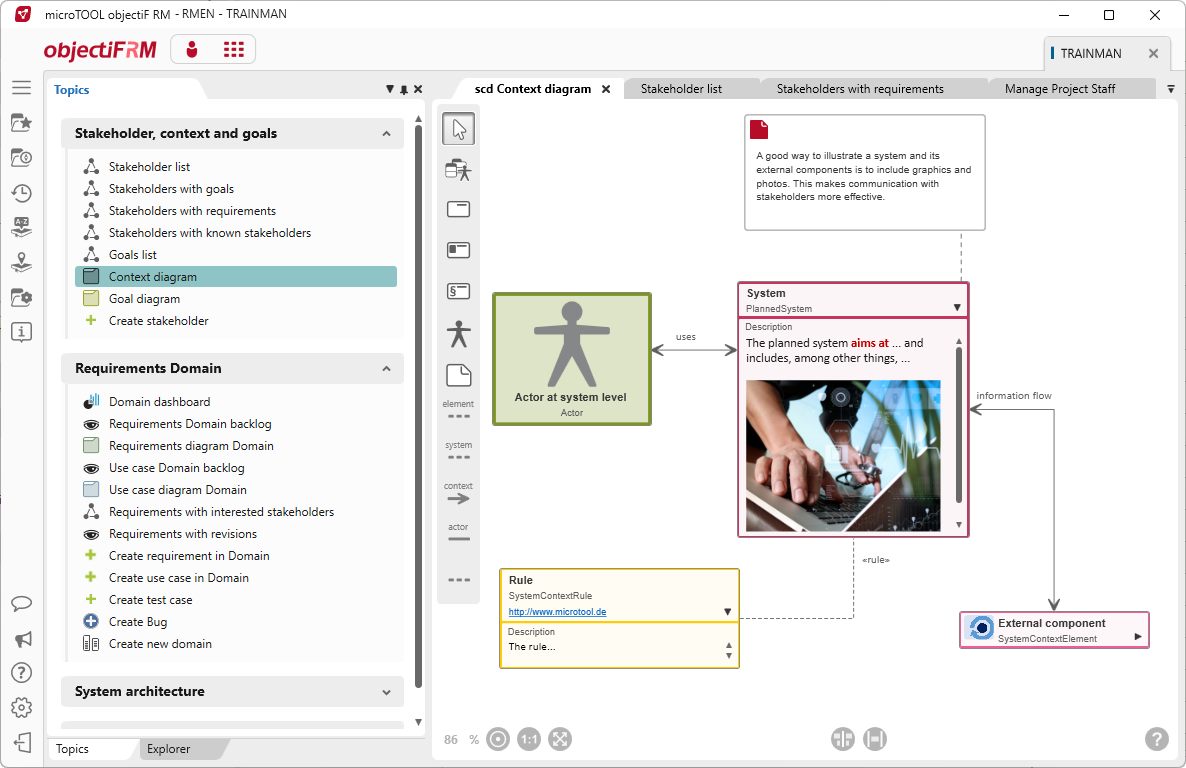
Arranging workspace
By default, windows and also diagrams and views are arranged as tabs in the workspace. You can place these freely on the screen or on a second monitor.
Tab Bar
All views, queries, charts, and the Form Designer are displayed as tabs in the order in which they were opened. You can switch back and forth between the open views using the tab bar. If there are a large number of tabs, not all of them can be displayed due to limited space. However, it is possible to display everything that has been opened in a list and bring it back to the foreground. To do this, simply click the arrow and select the desired item from the list.

Docking windows, views, queries, and charts
All windows and views can be fixed to one of the four sides of the workspace. As soon as you release a window from its anchorage or drag it into the workspace from outside, a positioning aid is displayed that allows a window to be docked to one of the four sides of the workspace. By dragging the view to one of the arrow icons, you determine the position at which it should be docked. Note that the positioning help is only displayed if the Dockable option is activated in the menu of the window title bar. You can open this menu by right-clicking on the title bar of the window.
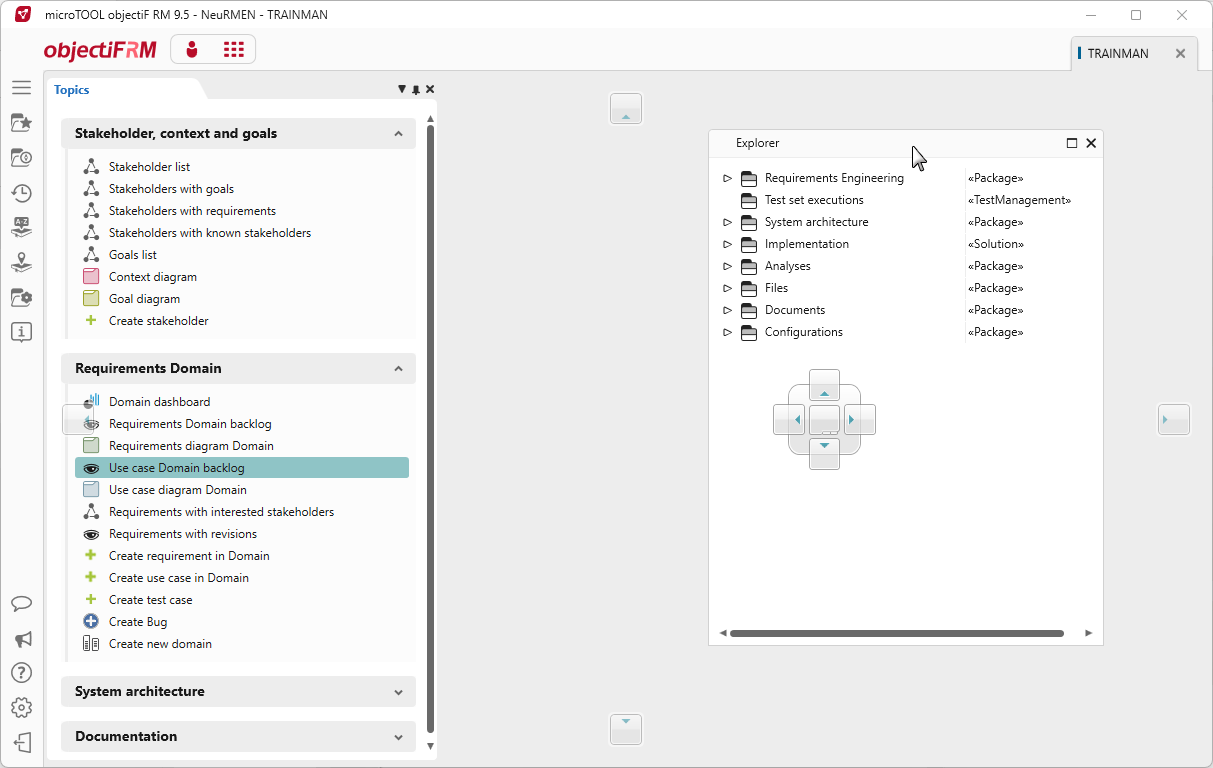
Maximize Window
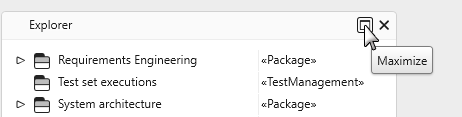
Windows that have been detached from their docking position can be maximized to fill the entire screen. To do this, click the tab and, while holding down the mouse button, drag the window to the center of the screen. Then click Maximize.
Enabeling/ Disabeling window
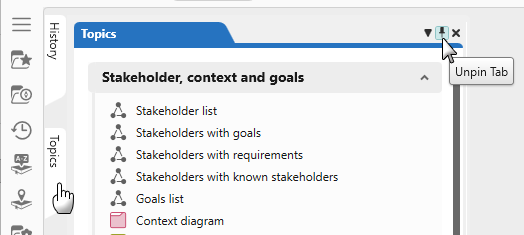
You can reduce open windows to a button, for example, if you need more space on the screen. Click on the pin to move it to the background.
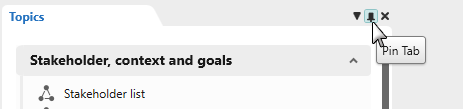
The window becomes a button and staples to the edge of the page.
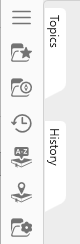
To display the window again, move the mouse over the button until the window slides back into the screen and click on the pin again.
Placing views
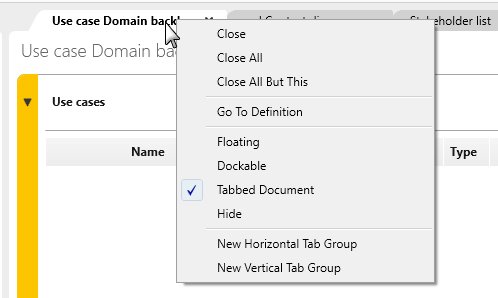
Click on the title bar of the desired window and drag it to the desired position while holding down the mouse button. If you want to return a diagram window to its original position, right-click in the title bar and select the command Tabbed Document.
To display the window again, move the mouse over the button until the window slides back into the screen and click on the pin again.
| Close | The view is closed. |
| Close all | All open tabs are closed. |
| Refresh | Updates the view. (Only available in the web client.) |
| Close All But This | All open tabs and tab groups (which are open in the middle of the screen) will be closed. The command is offered only if at least two queries, charts, etc. are open. |
| Go to Definition | Use the command to navigate to the location of the query, diagram, view, etc. In the Products window the element on which the command was executed is highlighted. |
| Floating | The view becomes a floating element that you can place anywhere on your screen. |
| Tabbed Document | The view is returned to its original position. |
| Dockable | The view can be placed like a window using the positioning aids. |
| Hide | The view is hidden. |
| New Horizontal Tab Group | Only offered when more than one view is open. The selected view is placed under the other views. |
| New Vertical Tab Group | Only offered when more than one view is open. The selected view is placed next to the other views. |