
Dialog “Import Requirements” – ReqIF Mapping
Here you set the mapping for the import. You can find specifications, requirements, relationships, and relationship groups on separate tab pages.
The dialog
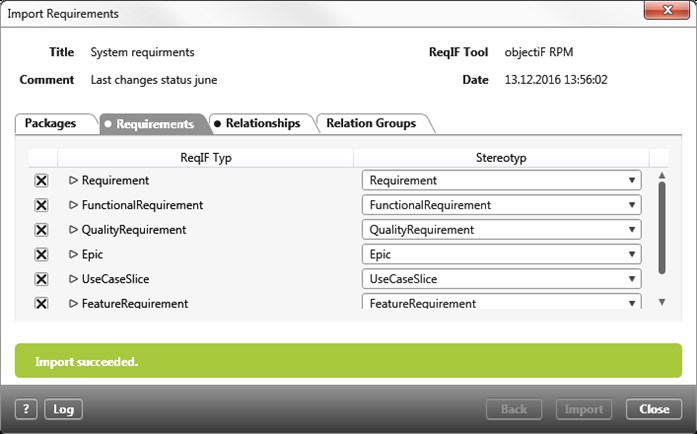
Title See the name of the selected import file.
Comment See the comment that was given with the export file.
ReqIF Tool See the tool that created the ReqIF file.
Date See the date that the ReqIF file was created.
For specifications, requirements, relationship and shared groups: ReqIF types that don’t recognise objectiF RPM are identified with the prefix(NEW) and will be created when exported.
Tab “Specifications”
Make the mapping for the specifications here. On the left side you can see all of the possible ReqIF types that the files contain. On the right side, you can allocate the stereotype by choosing the appropriate stereotype from the drop down menu. Use the control box to select and deselect the ReqIF types and their attributes.
Tab “Requirements”
Make the mapping for the requirements here. On the left side you can see all of the possible ReqIF types that the files contain. On the right side, you can allocate the stereotype by choosing the appropriate stereotype from the drop down menu. Use the control box to select and deselect the ReqIF types and their attributes.
Tab “Relationships”
Make the mapping for the relationships here. On the left side you can see all of the possible ReqIF types that the files contain. On the right side, you can allocate the stereotype by choosing the appropriate relationship from the drop down menu. Use the control box to select and deselect the ReqIF types and their attributes.
Tab “Releation Groups”
Make the mapping for the shared groups here. On the left side you can see all of the possible ReqIF types that the files contain. On the right side, you can allocate the stereotype by choosing the appropriate relationship from the drop down menu. Use the control box to select and deselect the ReqIF types and their attributes.
Log After the import is completed, the Log button is activated. You can click on this button to open the protocol.