
Der Dialog „Search-Manager“
The full text search is an optional expansion that can be activated via the SQL manager. Depending on which document should be searched through later, the corresponding filter must be downloaded and installed.
After the server installation, the Search Manager will be available via the Windows Start Button/ microTOOL objectiF RPM Server.
The Search Manager can be opened:
- via Windows Start menu

- in the installation directory of objectiF RPM
Dialog
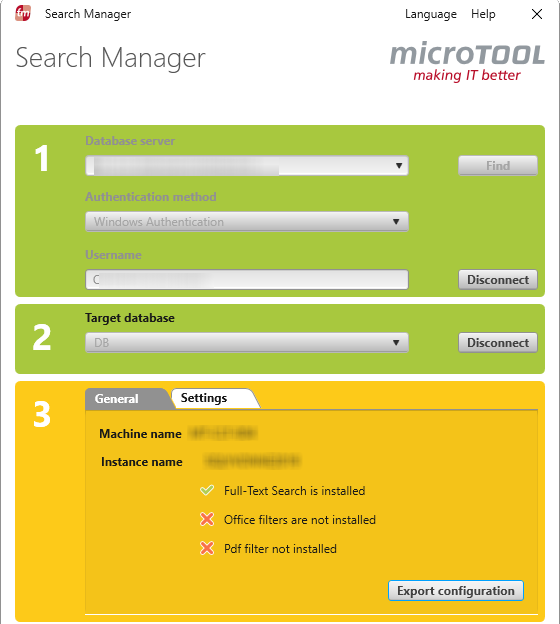
Step 1
Database server Select the local server via the drop-down menu (localhost). If the SQL server is located somewhere else in the network, it can be selected with Find. Alternatively, the server can be reached by typing in its name.
Search Searches the network for SQL servers. The servers that are found will be available to select via a drop-down menu.
Authentication method Specify the methods to log in to the server. The selected method has to comply with the methods that are used in the database server.
Windows Authentication is pre-set and no further input is necessary. When changing to the SQL Server Authentication, the dialog will expand. Enter the username and password.
Please note that with both authentication methods, the selected user must be entered as the user of the databank server.
Connect Make a connection to the database server.
Step 2
Target database If all the entries are correct, then the drop-down list Target databank will be activated. The databases that support a full text search will be offered. Select the databank to be updated.
Connect Make a connection to the database.
Step 3
Tab “General”
Machine name Displays the name of the computer.
Instance name Displays the server instance for which the full text search will be initiated.
Export configuration Exports the settings as an xml file.
Tab “Settings”
Status Displays whether a full text search exists.
If a full text indexing has already been executed, that will be displayed under the action None. Select Change settings via the drop-down menu to update the index or to make other settings.
Action Via the drop-down menu, enter when and how the full text index should be created.
- The action None never creates a new index.
- New index creates a new index. There is also the optionAccent here, which determines whether diacritical characters should be taken into account.
- Reorganize creates a new index from an existing one.
- Start indexing This option is available when the option Manual is selected under Option Oversee changes.
- The setting for the full text indexing can be adapted under Change settings.
Language Enter a language for the full text search. Select a language from the drop-down menu.
Change Tracking Enter here when a new full text index should be created.
- Automatic The indexing will be automatically carried out when changes are made.
- Manual The indexing has to be initiated manually. Select this option when using a new stop list or if a new index should not be created every time the databank is changed. The indexing will be carried out when the optionStart indexing is selected underAction. It will start as soon asExecute is clicked
- Off There will be no examination of changes.
- No population No new full text search will be created – regardless of whether something has changed in the databank or not.
Stoplist A stop list contains frequently used words like the, a, of, in, and so on, that should not be taken into account when searching. This list can be adapted via the SQL server. To use a stop list, select <System>. Select the option <Off> if the stop list should not be used.
Accent Activate this checkbox if diacritical characters should be taken into account when searching. This setting is only relevant if you have selected a language under Language that uses accented characters.
Create Takes over the settings and carries out each action.