
Dialog “Edit Query”
Use queries to retrieve specific information and data. You can narrow down the result list of a query further using filters or export it directly into an MS Excel/Word document.
The dialog opens:
- via context menu of a package with the command Create other → Query
The dialog
Icon Click the icon to assign a custom icon to the query.
Query type Use the […] button to select a query type. The selected query type determines which properties and other elements can be included in the query.
Name Name of the query. The name you enter will be used as the display name.
Query scope Use the dropdown menu to specify the scope of the project or organization in which the search should be performed.
| All entities of current project | You do not need a context element. In the query, all elements of a type that are in the project are displayed. |
| All entities of packages | In the query, all elements of a type that are in a package are displayed. |
| All entities of projects/ organizations | (only in Organization) In the query all element types of the projects/organizations are displayed, which are specified under Context elements. If you have selected this survey scope, you can define filters in the Context Filter tab. |
| All entities in organization hierarchie | (only in Organization) The query displays all the element types of the organization specified in Context elements. The subordinate organizations are also considered. If you have selected this survey scope, you can define filters in the Context Filter tab. |
| All entities in package hierachies | In the query, all elements of a type that are in a package are displayed. If the package contains other packages, these are also taken into account. |
| All activities of activities | The query displays all directly subordinate activities of the activity you specified as a context element. |
| All activities of activity hierarchies | The query displays all the child activities of the activity you specified as the context element. If the child activities contain other activities, these are also displayed. |
| All entities of artifacts | All elements of a specific artifact are displayed here. For example, if you want to see all tests for a Test Set execution. |
| All entities of artifact hierachies | When you map a hierarchy using an artifact, all the elements you have within the hierarchy are displayed. For example, you have nested test set executions, which in turn have test. |
Context elements As soon as you restrict the query as described above, to the entities of a package for example, you can specify more precisely which context elements.
Tab “Selected Properties”
On this tab, you can specify the properties of the selected query type that you want to display in the query. Clicking the plus button opens a dialog where you can select the desired properties. You can also inherit properties from linked elements.
The selected properties are listed on the tab with their property name, column name, and entity path. You can change the column name if needed by double-clicking it.
If you want to remove a property from the query, hover your mouse over the property in question. This will display the Delete button. Click this button to remove the property from the query.
The order of the properties determines the arrangement of the columns in the results list. You can easily change this by dragging and dropping a property to the desired position.
Tab “Filter”
On this tab, you define the criteria by which the displayed data should be filtered. Editable sections of the filter are highlighted in color and underlined. To edit them, simply click on the entry.
Click the plus button to create a new filter. You can choose from various filters.
Link Filters: If you want to link multiple filters, click the button with the two brackets. A new filter will be inserted and linked to the existing filter expressions via an underlined “AND.” Click “AND” to switch from “AND” to “OR.”
Delete a filter To remove a filter, click the Delete button. A red Delete button appears next to each filter you create. Click the button to remove the filter.
Edit filter and detail filter
You can use filters to restrict the elements to be evaluated according to criteria. Editable areas of the filter are underlined. After clicking on navigation path, the filterable elements are offered to you. Queries provide the following filters:
Property Filter
The filter expression is composed of:
| select a navigation path | Specify here for which element the filter is to apply. | ||||||||||||
| select a property | Specify here which property is to be filtered. | ||||||||||||
| select an operator |
|
||||||||||||
| enter a value | Enter a value. Values cannot be selected. You must enter the values manually. Numbers and text are possible, depending on the selected property. |
Assigned Project Staff Member
If you have selected under Entity Assigned project team member for the requirement or Assigned project team member for the test case in the query type, you can filter the query by user.
Project Staff Member By Group
If you use a query type Project members in a query, the filter can be used to display the result list of the query regarding the project members of a specific group.
Editor
If you have selected under Entity Assigned project team member for the requirement or Assigned project team member for the test case in the query type, you can filter the query by user. The filter expression consists of:
| select a navigation path | Specify here for which element the filter is to apply. |
| select editing kind | Since the agent who created the element does not necessarily have to be the one who further processes the element, you can specify here which agent is meant: The agent who created the element or who changed the element. |
Detail filter
Queries can also be filtered by a certain number of elements. For example, if you want to see which requirements have no test cases or a certain number of test cases, use this filter. The filter expression is made up of
select an operator
| = | displays the data that is identical to the value |
| != | displays the data that do not correspond to the specified value |
| < | displays the data whose value is smaller |
| > | displays the data whose value is greater |
| <= | displays the data whose value is less than or equal to |
| >= | displays the data whose value is greater than or equal to |
enter a value Enter a number.
Tab “Settings”
Display formatted text on multiple lines Select this option if you want columns (e.g., Description) to be displayed on multiple lines in the query.
Display line numbers Select this option if you want the individual lines in the query to be automatically numbered.
Page-by-Page Display (This feature is available only in the web client.)
Here, you can configure how many results should be initially displayed when the query is opened.
Enabled Sets the number of results per page. Enter the number in the “Items per Page” field.
Disabled Displays all query results in a list.
Default Applies the setting from the project.
Items per Page: Here, you specify the number of items to be displayed on a page. If the list of results exceeds the number specified here, they will be displayed on subsequent pages. At the bottom of the query, you can see how many pages there are and navigate through them by clicking.
Tab “Context Filters”
This tab appears when you create a query within an organization. You can define context filters if you have selected “All Entities in the Organizational Hierarchies” or “All Entities in the Projects/Organizations” under Query scope. Use this tab to define additional filters for projects and organizations. Possible filter criteria include:
- Properties of projects and organizations
- User-defined properties of projects and organizations
- Status of projects and organizations
- Stereotypes of projects and organizations
Click the plus button to create additional filters. Editable areas of the filter are highlighted in color and underlined. To edit them, simply click on an entry.
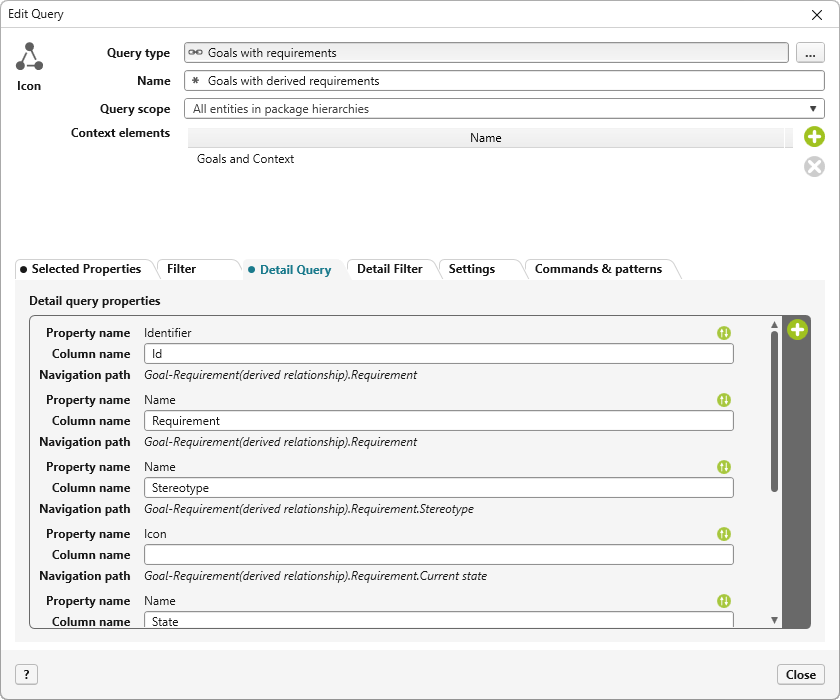
“Detail Query Properties” tab [optional]
This tab appears only if the underlying query type includes a detail type. Its functionality is the same as that of the Properties tab.
“Detail Filter” tab [optional]
This tab appears only if the underlying query type includes a detail type. Its functionality is the same as that on the “Filter” tab.
“Commands & Patterns” tab
Configured Commands
In queries, you can define one or more commands to create new elements directly from within the query. Once a command has been created, a plus button appears in the query—in the upper-right corner next to the filter. Click this button and select the command.
The new element is created according to the definition in the selected package (context).
Configured Templates
In queries, you can define one or more templates that can be applied directly to the query’s context element. When a command is created, a plus button appears in the query—in the upper-right corner next to the filter. Click the plus button and select the template.
Save and Enter Next Element Check the checkbox if you want to create multiple elements. If the checkbox is not checked, the dialog closes after you click the OK button.