
Dialog “Edit State”
You can assign various actions to a state that are executed automatically when the state in question occurs, is reached, or is exited (input, state, output actions).
The dialog Edit state can be opened:
- via a state diagram by double-clicking the desired state machine there.
The dialog
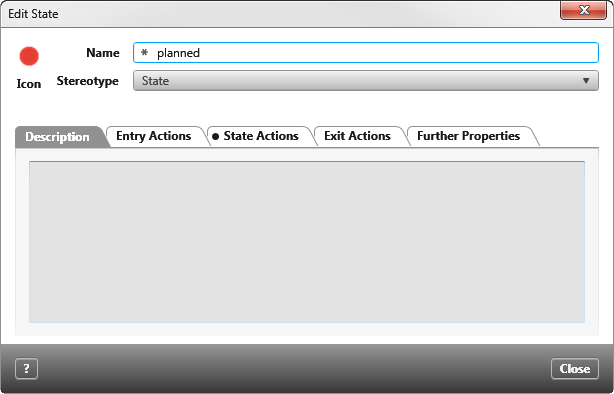
Name Enter a descriptive name. The name will be displayed in the view Settings under State Machines.
Stereotype Choose the appropriate stereotype from the drop-down list. Depending on the chosen stereotype you can define Further Properties using the respective tab.
Icon Choose an icon to represent the state. The icon can be evaluated, for example, in Queries and generated to MS Word Documents.
Tabs “Input Actions, State Actions, Output Actions”
In these tabs, you can define actions that are executed automatically when the relevant status occurs, is reached, or is exited (input, status, output actions).
Possible actions are listed in the upper part of the tab page. Select the action to be performed and click the Plus button. If an action has been selected, the button is deactivated.
You can then define the action more precisely in the lower part of the tab. Underlined terms highlighted in blue indicate possible entries. Click on the underlined terms to edit the settings. If you have added several actions, they are linked with AND.
Tab “Further Properties”
If the stereotype has user-defined properties, you can enter values for them here.