Version 5.2 and higher
Create Multi project plan
You can use multi-project views to display and edit several projects running simultaneously within a company or organizational unit.
Using the context menu of an activity, you can find commands for creating, editing, or deleting further activities. You can define permissions for an activity and create different views. It is also possible to open the project directly from the view.
- Choose Create other/ View from the context menu of a package.
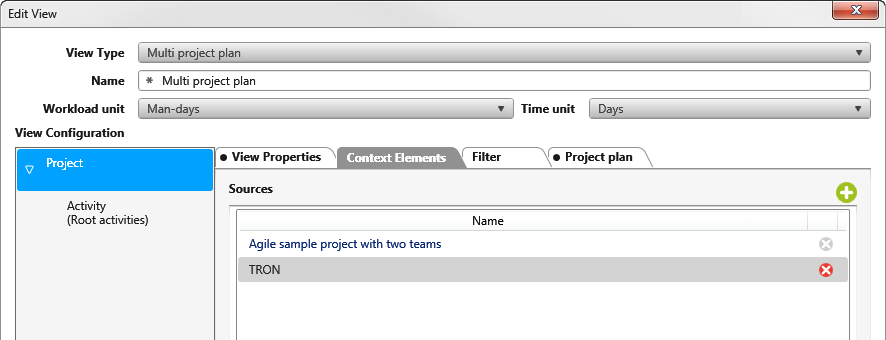
- Use the drop-down menu under View Type to select Multi project plan.
- If you want to display the effort for the activities, set the desired unit under Workload unit and Time unit.
- On the Context Elements tab, specify the projects to be displayed in the view. Use the plus button to do this.
- Switch to the Properties tab and use the plus button to select the project properties you want to display.
- Under View Definition, select the Activity (Root Activities) entry and on the Properties tab, select the properties that are to be displayed for the activities. Use the plus button to do this.
- Save with OK.
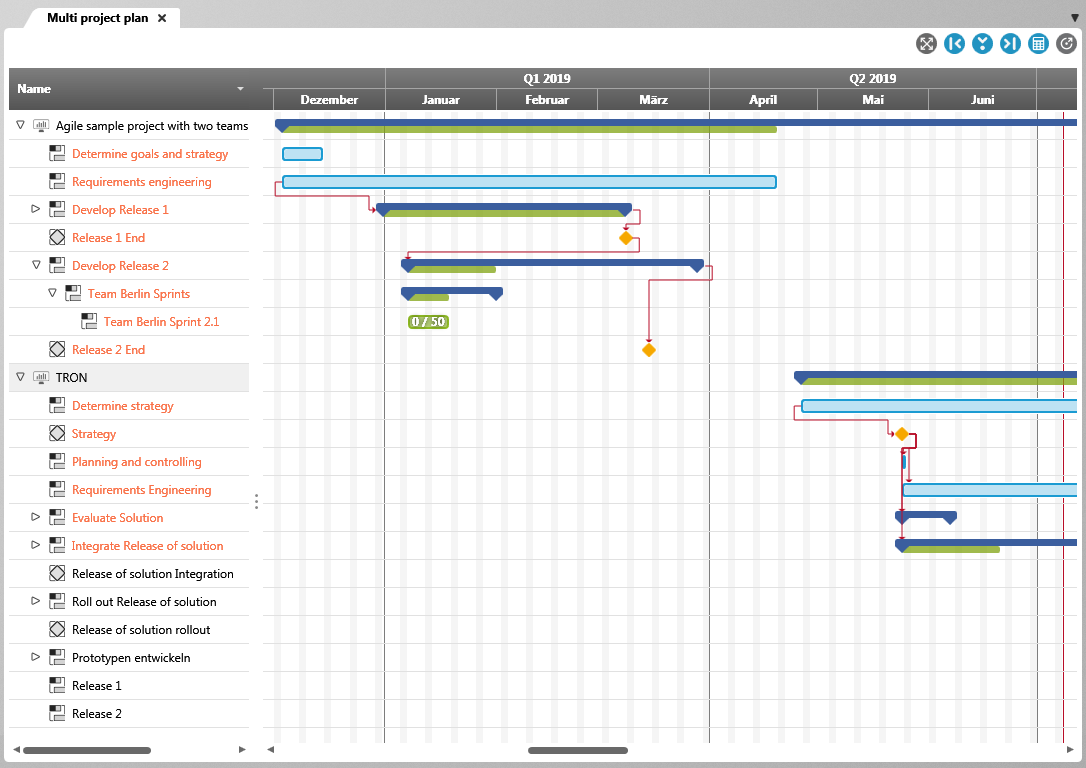
When you open the view, you see several project plans below each other. The top activity of the project is replaced by the project name. All activities are then listed below.