
Compare two revisions of a project plan with each other
If you compare the current project plan with an older version, you can display the differences in a separate view. The colored markers show you what has been added, changed, or deleted.
You call up the history:
- by selecting the top activity in the project plan and choosing Edit Revision / Show History from the context menu. Select a revision and click Compare.
The view
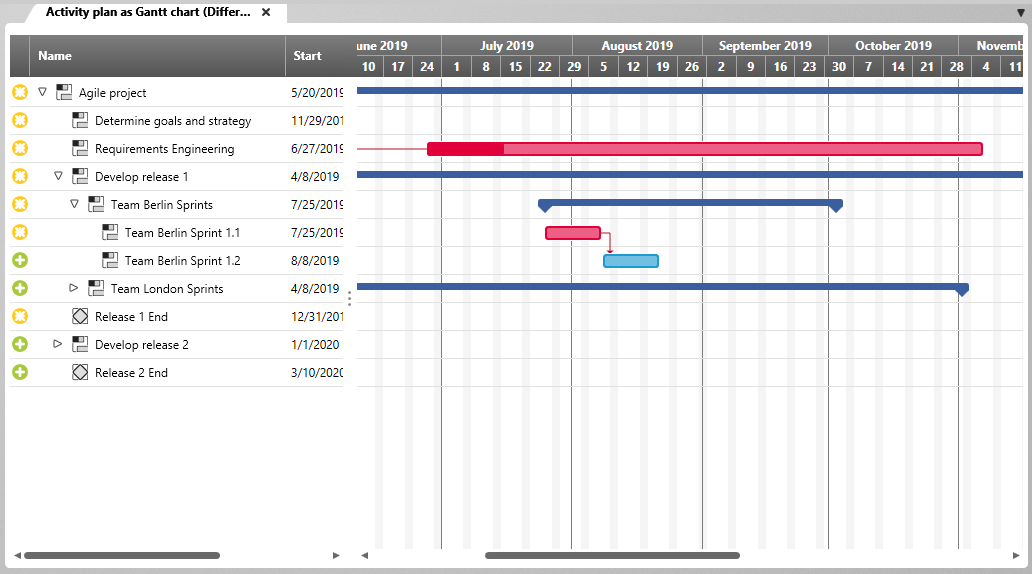
In this view, the project plan and revision are cumulated. On the right side the Gantt diagrams are superimposed. This also allows you to visually capture changes. The grey elements represent the status of the revision. The colored elements show the current status of the project.
 |
This item was added to the project after the created revision. |
 |
The item was removed from the project after the created revision. |
 |
The element has changed. |