
Kanban Board (for Elements)
Kanban boards are used to visualize the processing workflow of elements such as requirements or test cases that are located in a package. At a glance, you can see which elements are still open, are currently being processed, or have already been completed. This allows you to keep track of the current processing status.
A Kanban board is divided into columns that you can define freely when creating it, e.g., Tasks, Achieved, or Not Achieved. You assign one or more states to each column. If an element is in one of these states, it is displayed in the corresponding column.
You can move elements from one column to another via drag & drop. The state of the element changes automatically. The displayed WiP limit indicates how many elements should be processed simultaneously in a column. Take this limit into account when moving elements.
The dialog opens:
- via the context menu of the view using the command Open
- by double-clicking
The view
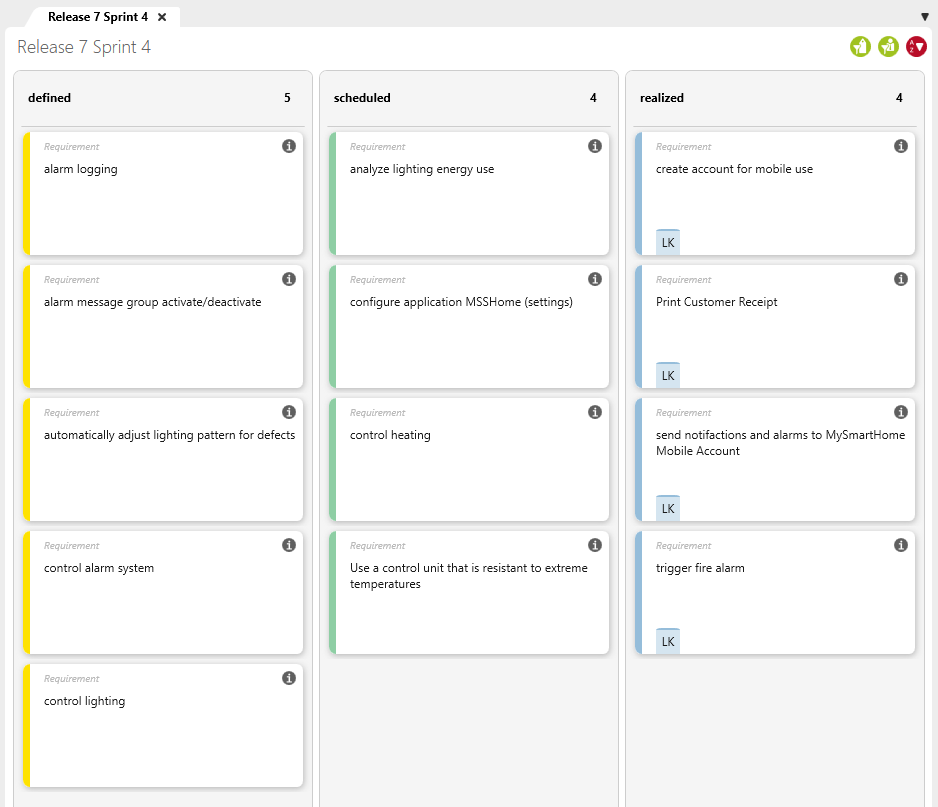
In the configuration dialog, you can select additional properties to be displayed on the tile. These include, for example, assigned project employees or (custom) properties.
In the lower section of the tile, the assigned project employees are displayed with their name abbreviations. When you move the mouse over them, the employee’s full name is displayed.
WiP Limit
In the view configuration, you can specify a WiP limit for each state group. The WiP limit indicates how many elements should be in the individual work phases at the same time. The displayed WiP limit is a recommendation and can be exceeded if additional elements are dragged into the column.
WiP Limit
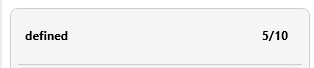
WiP Limit Exceeded
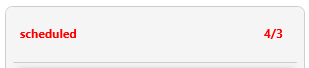
WiP Limit with Project Group | Project Employee
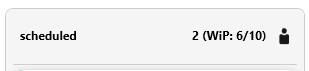
No WiP Limit Defined
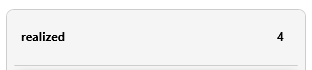
If no WiP limit has been specified in the configuration, the view displays the number of elements that are currently in the state.
Filter Results
Filter Results Using Buttons
To reduce the entries displayed in the Kanban board to those relevant to you, filter icons are available in the upper-right corner.
Filter by Custom Properties
If you display elements in the Kanban board to which employees cannot be assigned by default, you can filter project employees using a custom property.
- Create a custom property of the reference property type on the stereotype.
- Assign the ProjectUser stereotype to this property.
- Then, in the editing dialog of an element (via Further Properties), assign the desired project employees. You can now filter by them in the Kanban board, provided that the property is selected under Users on the Information tab in the Edit Kanban Board dialog.

Sort by Stereotype
The elements in the individual areas are sorted according to stereotypes.

Sort by Name
The elements in the individual areas are sorted according to names.

Sort by State
The elements in the individual areas are sorted according to states.

Edit filter
By default, only the elements assigned to the currently logged-in user are displayed. As of Version 9.6, you can additionally filter by other employees or project groups. The selected filter setting is saved as a personal user setting.
The button is only displayed if the Associated project users option is selected under User on the Information tab in the view configuration.
To remove the filter, click the button again and select Disable Filter.

Activate Filter by Labels
Only elements that match the selected label are displayed. To remove the filter, click the button again and select Deactivate Filter by Labels.
The button is only displayed if labels are defined in the project.
Filter Results for Project Groups | Project Employees
Another way to reduce the entries displayed to users is to assign project groups and/or project employees when configuring the view. The assignment is made for the individual state groups.
Advantage of this configuration: Different teams can work in one Kanban board and see only the entries that are relevant to them.
For example, if the logged-in user belongs to the project group, a user icon is displayed in the upper section of the respective state group. The number of filtered elements is displayed before the icon. If a WiP limit is defined, it is shown in parentheses.