
Displaying a Dashboard Instead of Userboard
Since the release of version 7.1, it is now possible for user’s to decide if an organization’s dashboard should be displayed instead of the default userboard upon logging in.
This setting can be configured either centrally for all users or individually by the logged-in user.
Show Dashboard (For All Users)
Administrators can configure the system so that a dashboard from an organization is displayed instead of the user board after login.
- Use the vertical toolbar to navigate to System Settings, then select System → Settings → Edit General Settings.
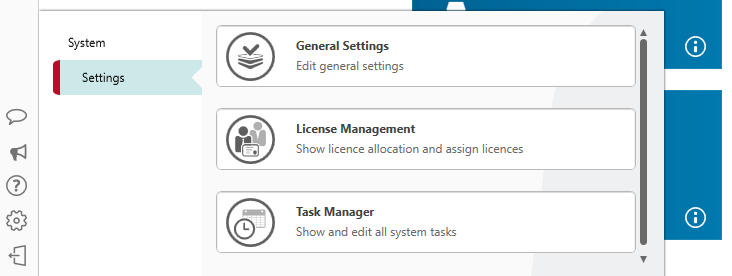
- Go to the Backstage tab.
- Select the option Show Dashboard, click on the […] button and choose a dashboard from an organization.
Note
You can select a dashboard only if views of this type have already been created in the organization and you have the necessary permissions to access the organization.
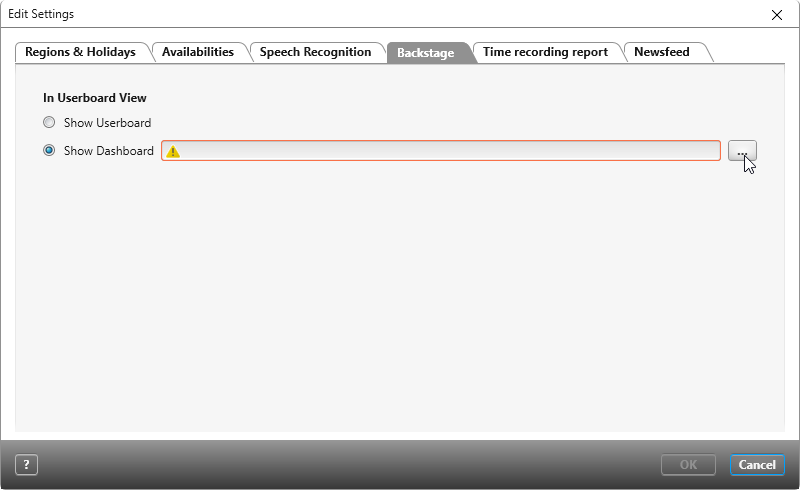
- Confirm your choice with OK.
Show Dashboard (For Registered Users)
Configurations made directly in each user’s general settings, which concern whether the userboard or a dashboard is displayed upon logging in, are only applied to their account. Other users only see what has been configured in their own general settings.
- Click the Open Personal Menu button on the horizontal toolbar, and then select Personal → Startup Settings.
- Select the option Show Dashboard, click on the […] button and choose a dashboard from an organization.
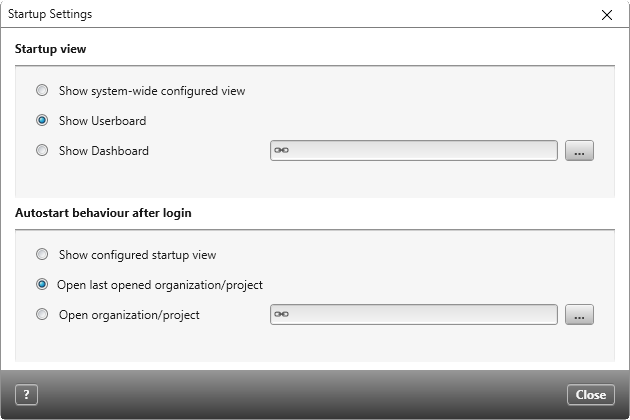
- Save.
Restore Default View
If you want to restore the Userboard view, follow these steps:
For all users
- Open the System Settings via the vertical toolbar and select System → Settings → Edit General Settings.
- On the Backstage tab, check the Show Userboard option.
For the logged-in user
- Click the Open Personal Menu button on the horizontal toolbar, then select Personal → Startup Settings.
- Check the Show Userboard option.