
Dialog “Select Element Hierarchy”
Version 6.2 and higher
Use this dialog to define which elements and relationships are to be displayed in the query.
The dialog opens:
- when you edit a hierarchical query and click the Edit button next to Element Hierarchy.
Der Dialog
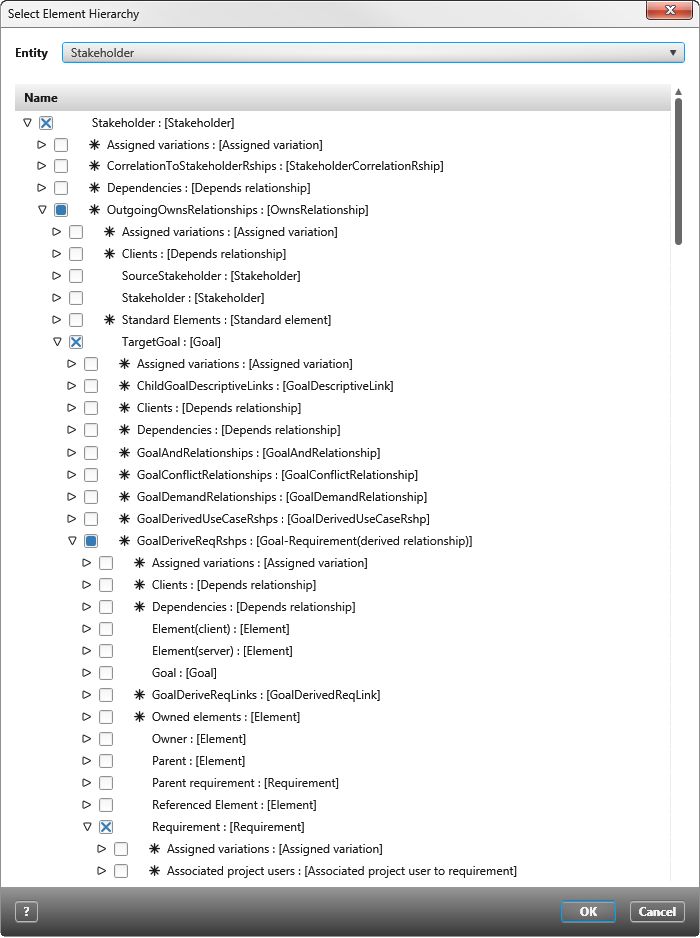
EntityUsing the dropdown menu, select the element to which you want to display relationships, such as derivatives, refinements, and so on. If you want to see possible relationships for requirements, select Requirements. Or if you want to see a stakeholder’s goals, derived requirements and test cases, select Stakeholders, and so on.
Name
Depending on what is selected under Entity, relationships and items that are available and can be selected are displayed here. By default, Package is selected.
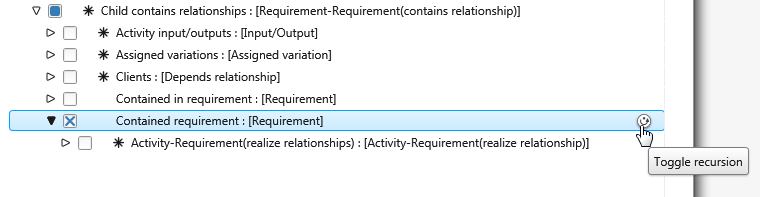
Select a relationship or item by clicking the small check box. Once you have made a selection, you can also specify whether the relationship should be considered recursively. Set this option if you want to display not only the derivatives for a requirement, but also their derivatives.
An element (entity) may have different relationships to other elements. Scroll to a relationship and expand it to see the possible elements and other relationships. Select the target element and deselect it before the relationship.
The selection – the relationship as well as the element – is displayed under Element Hierarchy as soon as you save the settings with OK. Entries marked in bold are displayed in the query. Usually you only want to see the derivatives of an element and not the relationship. If this is the case, make sure that the relationships are not marked bold, as they appear as separate rows in the query.
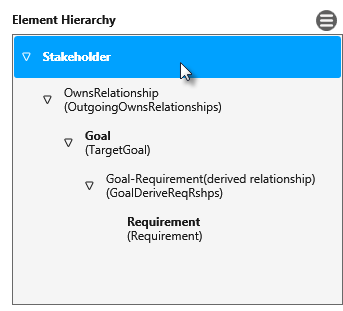
In the above example, all derivations, dependent requirements, and refinements are displayed for a requirement. The target elements Requirement and Goal are bold, the relationships have been disabled, and are therefore not displayed in bold.
 |
Klicken Sie in das Kästchen, um die Beziehung oder Element zu markieren. |
 |
Einige Beziehungen und Elemente können rekursiv angezeigt werden. Fahren Sie mit der Maus über die einzelnen Einträge bis am Ende ein Symbol erscheint. Klicken Sie es an, um die Rekursion einzuschalten. Hinter dem Symbol wird eine Zahl eingeblendet, die anzeigt, wo sich ebenen-mäßig das Hauptelement befindet. Wenn Sie auf die Zahl klicken, wird das übergeordnete Element markiert. |
 |
Kennzeichnet die Beziehung oder das Element als Liste. ( n-Beziehungen) Listen enthalten weitere Beziehungen oder Elemente zu der ausgewählten Entität. Zum Beispiel: Anforderungen mit Testfällen |