
Displaying commands in the context menu
If you work with extension functions or develop your own forms, you should specify where the associated commands are displayed in the context menu. You can either assign commands to existing context menu groups or – particularly for extensions – define a separate group for them.
Determine group for classification
The context menu is divided into different groups. Each individual entry can be regarded as a group.
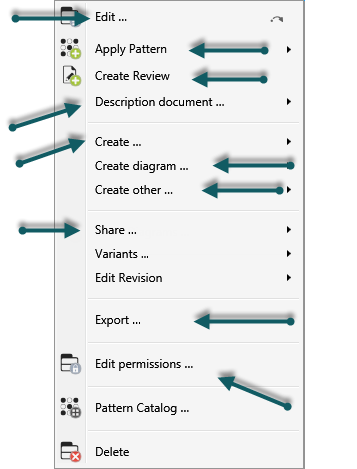
For most context menu commands, you can display the group name and the position. Call up the context menu and move the mouse over a command. Do not click! Press the F1 key. A message appears in the output that provides information about the name of the command, the group name and the weighting.

The command is called Derive test cases, the group is Frequently used commands for creating and the position is 3.
Overview of context menu groups
You can assign the commands for creating and editing artifacts and the commands for enhancement functions to the following context menu groups:
| Displaying in menu group | Form | Extension function |
|---|---|---|
| Activity | top menu, own group | - |
| Requirement | under "Create" | - |
| View | top menu, own group | - |
| Import Artefacts | top menu, own group | - |
| Description document | under "Description document" | - |
| Create documents | under "Create", Group „Document“ | - |
| Export | under "Export" | - |
| Sometimes used commands for creating other elements | under "Create other", group „Query Type“ | - |
| Sometimes used commands for creating | under "Create", own group | - |
| Frequently used commands for creating other elements | under "Create other", group „Form, Pattern, Variation point“ | - |
| Frequently used commands for creating | under "Create", group „Actor, Persona…“ | - |
| Commands for files and directories | top menu, own group | - |
| Commands for access rights | top menu, group „Edit permission“ | x |
| Commands for image creation | top menu, own group | x |
| Commands for deletion | top menu, group „Delete“ | x |
| Commands for manipulation | top menu, group „Edit…“ | x |
| Commands for navigation | top menu, group „Show Diagrams“ | x |
| Commands for revisions | under "Edit Revision" | x |
| Commands for sharing | under "Share" | x |
| Commands for creating block diagram elements | under "Create", group "Block" | - |
| Commands for creating diagrams | under "Create diagrams", group „Diagrams" | - |
| Commands for creating diagram references | under "Create diagrams", group „Diagram references“ | - |
| Commands for creating extension functions | under "Create other", group „Extension Function“ | - |
| Commands for creating views | under "Create other", group „Burn Up etc.“ | - |
| Commands for viewing relationships | under "Got to" | - |
| Commands for executing Extension Functions | own group | - |
| Commands for go-to-navigation | under "Go to" | x |
| Create Model Activities | under "Create", group „Model Aktivity“ | - |
| Apply pattern | top menu, group „Pattern Catalog“ | - |
| Very frequently used commands for creating other elements | under "Craete other", group „Query“ | - |
| Very frequently used commands for creating | under "Create", group „Requirement“ | - |
| Rarely used commands for creating other elements | under "CReate other", group „Profile“ | - |
| Rarely used commands for creating | under "Create", group „Specification“ | - |
| Edit Script Package | under " Edit Script Directory" | - |
| Variants | under "Variants" | - |
| Edit Directories | under "Create", group „New Directory“ | - |
| Create Goals | under "Create", own group | - |
| User defined | - | x |
| Commands for merging files | top menu, group "Software engineering" | - |
Sorting commands for forms in the context menu
When you create new forms, you must specify where the commands for creating and editing should appear in the context menu. Forms are displayed in the context menu and can be selected and used by users only if they are correctly assigned to a context menu group. Without this assignment, they remain invisible.
- Open the form with Edit.
- Name the form and select the stereotype for which the form was created.
- Under Usage, specify when the form should be opened: only for creating, only for editing, or in both cases.
- Switch to the Create Command or Edit Command tab and select the Display at Top Menu Level option.
- Select a group from the drop-down menu and specify a weight. The higher the value, the lower the commands are ranked. If a command has a weight of 0 and you want another command to be displayed before it, you can also work with negative values.

- Save and then check whether the forms are correctly positioned or whether the commands should instead be provided in a different group with a different display name.
Classify commands for extension functions in the context menu
If you have created an extension function and have not made any further settings when creating the command, then the command to execute is offered to you by default via the context menu command Run Extension Function → [Your command].
Alternatively, you can specify a group for extension functions or create a user-defined group.
- Open the Commands for Extension Functions view via the context-specific menu by selecting the command Project → Settings → Configure Commands.
- Click the Plus and select Extension Function Command.
- Under Positioning, select the Display on top-most level in menu option.
- Select a group from the dropdown menu and enter a weight. If you want to have your own group for extension functions, choose User defined and enter a name in the field below. The higher the value, the lower the commands will be. If a command has the weight 0 and you want another command to be displayed before it, you can also work with negative values.
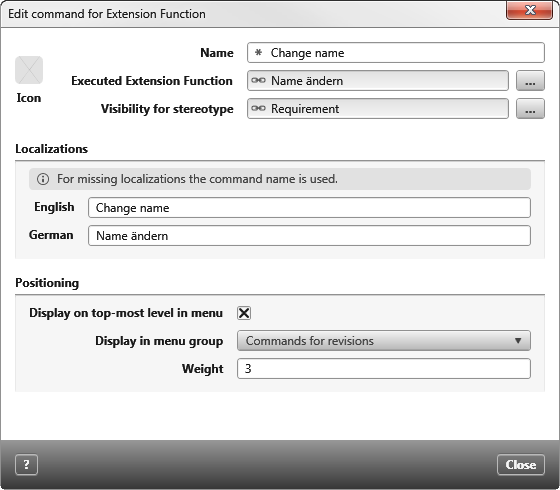
- Save with OK.