
Compare project plan with revision
If you compare the current project plan with an older version, you can display the differences. The colored markers show you what has been added, changed, or deleted. The grey elements represent the status of the revision. The colored elements show the current status of the project.
The comparison opens:
- by selecting the top activity in the project plan and choosing Edit Revision / Show History from the context menu. Select a revision and click Compare.
The view
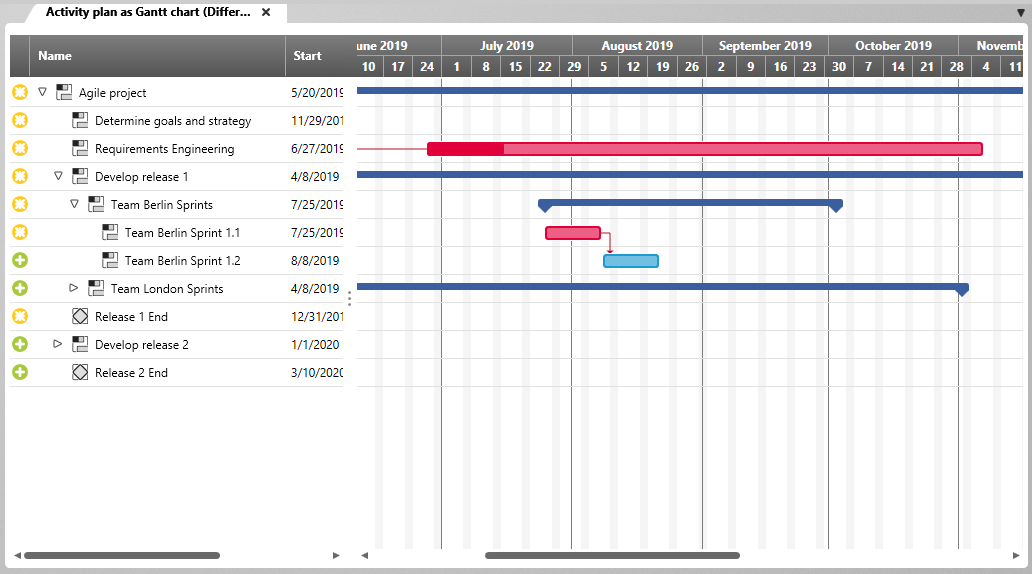
On the left you can see which elements have been added, removed or changed by means of the icons.
 |
This item was added to the project after the created revision. |
 |
The item was removed from the project after the created revision. |
 |
The element has changed. |
On the right, the bars show the extent to which the activities have changed over time.
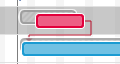 |
The bar is displayed in red if the activity ends at a later time – compared to the last revision. The start date and duration of the activity are ignored. |
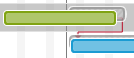 |
The bar is displayed in green if the activity ends at an earlier time – compared to the last revision. The start date and duration of the activity are ignored. |
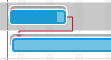 |
The activity has not changed in time. |