
Search function
Once the search function has been configured in the Search Manager, the search function is displayed as a magnifying glass at the top of the workspace.
Avoid abbreviations and words that end with a period (etc., i.e.), hyphens and special characters. These terms will not be found.
Start a search and specify the search scope
Open the search field by clicking the magnifying glass. Then enter a search term and specify the scope in which you want to search:

or
- in all projects (cross-project)
Start the search by clicking the magnifying glass (at the end of the search input field) or by pressing the Enter key.

The following are searched:
- Name and description fields
- Custom properties of the Text and RTF types
Stereotype
This setting searches the project for all elements with the specified stereotype.
- Enter the search term (title, term from the description) in the first field.
- Next, set the search to Stereotype and select the stereotype to which the element you are looking for belongs from the drop-down list next to it. Alternatively, you can enter the first letter or type in the stereotype.

- Start the search by clicking on the magnifying glass or pressing Enter.

The results are displayed in a results list.
Searching in queries
If you do not want to search the entire project for an element, you can also search for the element in a query. Please note that this search does not search across all projects, but only in the currently open project.
- Enter a search term.
- Set the search context to Query using the drop-down menu.

The query icon is displayed.

- Select the desired query and then start the search.
Label
You can also search specifically for elements to which a label has been assigned.
This search is limited to the currently open project.
- Enter a search term.
- Set the search context to Label using the drop-down menu.
The label icon is displayed. - Select the desired label and then start the search.

Searching cross-project
The cross-project search is particularly suitable for finding reusable requirements, references, or other elements across multiple projects.
- Enter a search term and select the appropriate stereotype.
- Select the cross-project option.

- Start the seach.
If search results from another project are displayed, you can see the project from which the found item originates behind Source. If the item is in the currently open project, the source is not displayed.
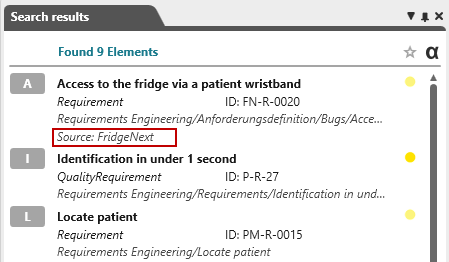
A double-click opens the element directly in view mode, even if it does not belong to the project. Alternatively, you can open the element in your own project by selecting the context menu command Go to → Definition.
Search with search operator
Use one or more operators to better narrow down the search. The following operators can be used:
| OR | All elements containing the word are searched for. Example: Customers OR Clients |
| AND | All elements containing at least one of the specified words are searched for. Example: Customers AND Clients |
| + | All elements beginning with the term are searched for. The plus sign replaces the missing term. Example: +order |
Enter multiple terms and connect them with AND or OR, select a stereotype, and start the search.
The result list
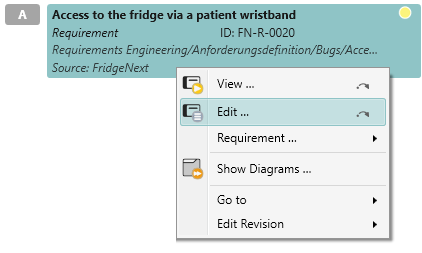
The results list contains additional information about each element, including:
- Element name (highlighted in bold)
- State icon
- Stereotype and generated ID
- Path to the storage location
You can use the context menu to open or edit the element or navigate to its storage location.
Sort search results
The following sorting options are available on the right-hand side next to the results list:
 |
The results list can be sorted by weight. The search analyzes where the search term can be found in the element: in the name and/or in description texts. Terms that occur in the name have a value of 2. If the terms occur only in description texts, they have a value of 1. If terms occur in both the name and description texts, they receive a value of 3 and are therefore listed first. Click the icon to change the sorting from alphabetical to weighted. The icon for alphabetical sorting is grayed out. |
 |
The results list is displayed alphabetically. If the name contains numbers, these are also taken into account. The icon for weighted sorting is grayed out. |