
View “Manage Users”
The view contains all users that were created within the main organization or that exist in your database. If you create additional organizations, the users created in the main organization are also made available here.
The view can be opened:
- via the vertical toolbar, by selecting System → User Management in the System Settings
The view
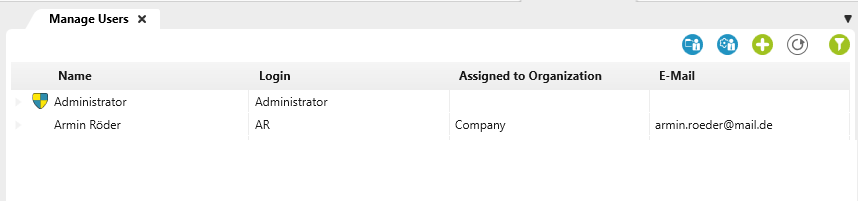

User is administrator
Symbolizes a database administrator here. He has special rights.
Name Here you can see the first and last name of the user.
Login Here you can see the entered user name. Please note that it is prefixed by the domain name during Windows authentication, e.g. MYDOMAIN\John.Smith.
Assigned to Organization Here you can see the organization path.
Email The email address associated with the user is displayed here.
View toolbar

Create a new user from the Active Directory
The button opens a dialog box that displays all users created in a domain. Users are added from an organization’s Active Directory (domain) via a selection dialog. You can also import employees from Active Directory into a system using a task.
When you import from Active Directory again, existing employees are updated.

Configure Active Directory Import
The button opens a dialog box that allows you to configure the import from Active Directory. This feature is not available in the web client.

Refresh the list of organization users
Updates the view after changes are made.

Create a new user
Creates a new user

Show filters
The filter can be used to filter and display certain employees.
User context menu
The following commands are available via a user’s context menu:
Edit Opens the user’s edit dialog.
Manage access tokens Opens a dialog where you can create a token for GitHub.
Reset two-factor authentication For example, if a user changes or loses the mobile phone they use for two-factor authentication and can no longer log in using two-factor authentication, this command can be used to reset the authentication method.
Delete Deletes the user