
Create, edit and delete staff
Users who already exist in the system can be added as employees of an organization and have additional user information entered for them. You can also create employees within an organization. These employees are then available only to that organization and its associated projects.
Create Employee
Employees created within an organization are available only to that organization.
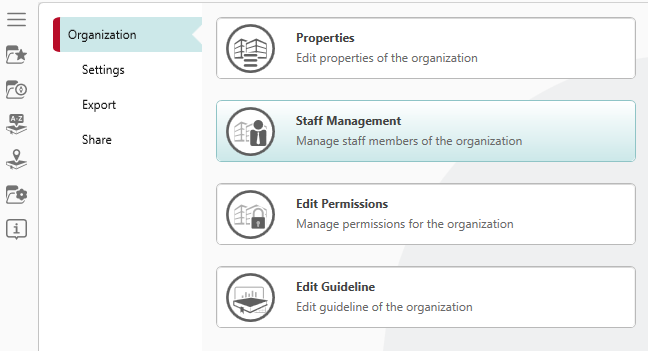
- Open an organization and click the Organization → Staff Management menu item in the context-specific menu.
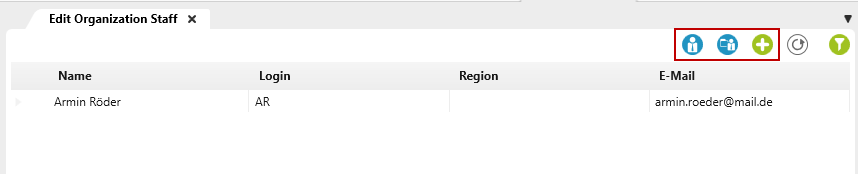
- Click the plus button in the view to create a new user.
- Alternatively, from the Manage Users view, you can add a user to the view by clicking the first blue button.
- Or you can load a user from the Active Directory into the view by clicking on the second blue button.
- Enter the employee data in the edit dialog.
If custom properties have been created for the User stereotype, additional information can be entered on the Further Properties tab.
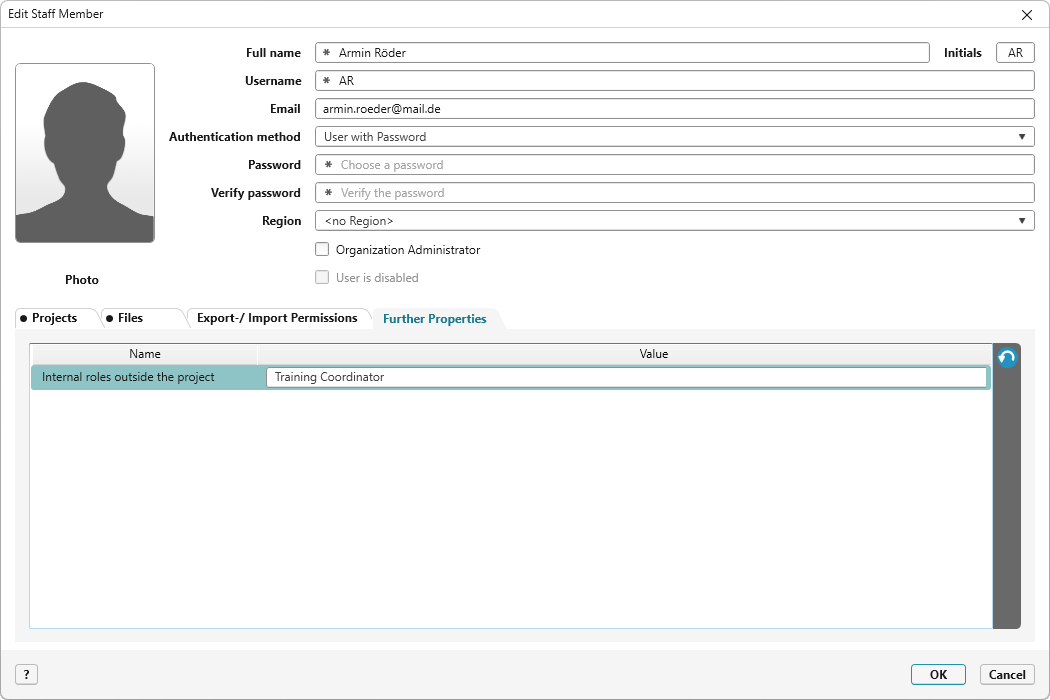
- Then click OK to create the user.
Make an Employee an Organization Administrator
Organization administrators have advanced permissions, such as the ability to create, edit, and delete organizations, projects, and employees. They are authorized to manage users, employees, and project members within their organization and have access to the administrative areas of their organization(s).
- Open an organization and click on the Organization → Staff Management menu item in the context-specific menu.
- Select the employee who should be granted administrator rights, and select the Edit command from the context menu.
- In the subsequent dialog, check the Organization Administrator option.
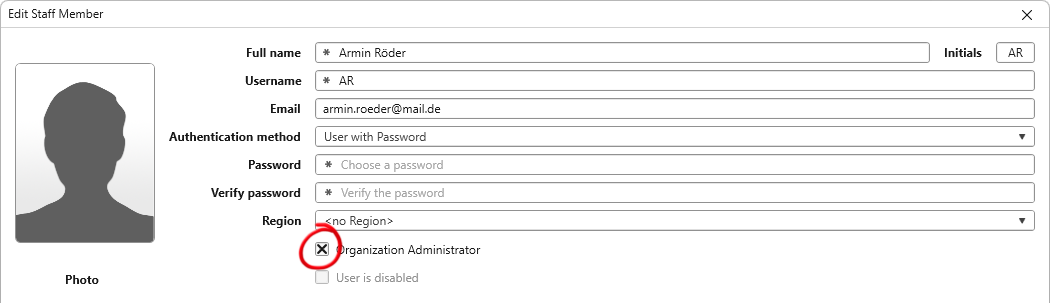
- Save.

In this view, the user is identified as an administrator by the Administrator icon (shield).
Edit Employee
In addition to the name and login credentials, the dialog box includes other tabs for additional information:
- Projects tab: Shows which projects the employee is assigned to
- Files tab: Contains the path to the working directory
- Export-/Import Permissions tab: Manages permissions for importing and exporting data via various interfaces.
To view or edit this information, open the view and select the employee.
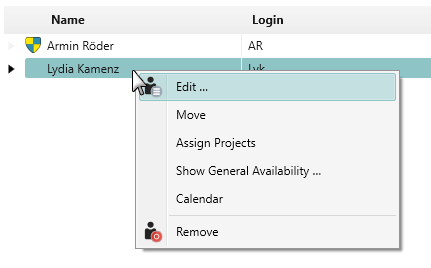
- In the employee’s context menu, click Edit.
Assign Employees to a Project
Employees within an organization can be assigned individually to multiple projects.
- In the Edit Organization Staff view, select an employee you want to assign to one or more projects.
- In the employee’s context menu, click Assign Projects.
A selection dialog opens, displaying the organizational structure hierarchically. Expand the top-level organization by clicking the small arrow in front of the organization name. The current organization is highlighted with a blue border.
The dialog box also displays the project templates. You should not assign these to any employees, as they are automatically created when a new project is created.
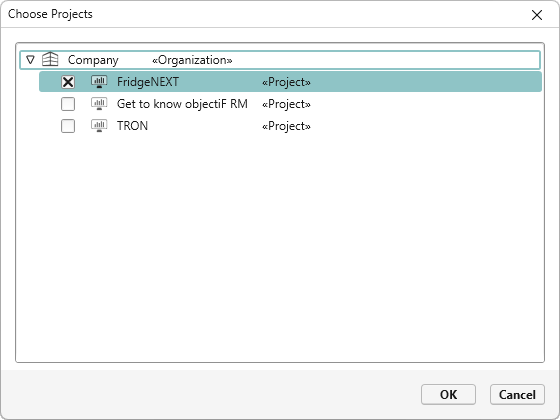
- Select a project. You can select multiple projects.
- Click OK to confirm the assignment.
The selected employee will be assigned to the projects and will appear in the Manage Project Staff view for each project.
Remove an Employee
Employees cannot be deleted; they can only be removed from the organization. If an employee is already assigned to a project, they must first be removed from that project in order to remove them from the Manage Employees view.
- Open an organization and click the Organization → Staff Management menu item in the context-specific menu.
- Select an employee in the view and choose the Remove command from the context menu.
- Confirm the security prompt.