
Add a Project User
Existing employees can be assigned to a project as project team members or added directly to a project.
Create Project Members
Project members that you create directly in this view are automatically added to the organization as employees and users. If a region is specified, they are automatically assigned the organization’s designated region.
- Open the project’s context-specific menu and select Project → Project Staff Management.

- In the Manage Project Staff view, click the plus button.
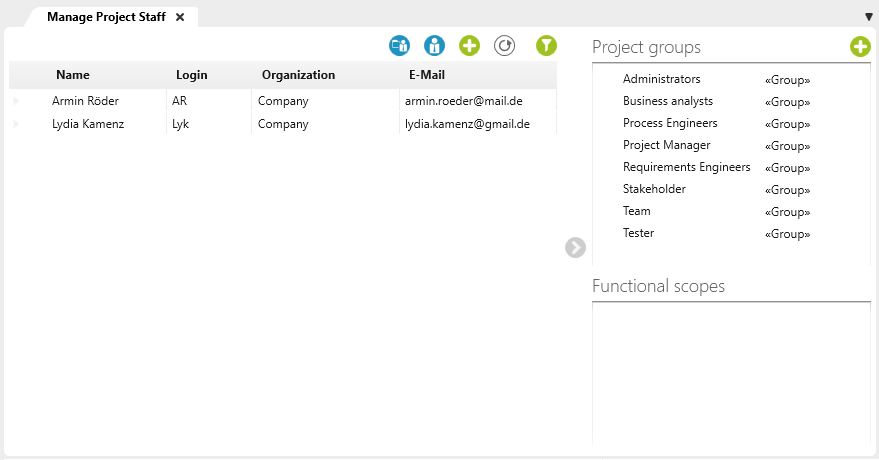
- A dialog box will open where you can enter the project user’s name and make other entries.
- Click the OK button to save your entries.
The project member will be added to the view and displayed.
Import Project User
Project staff can be imported from Active Directory if the staff members are assigned to a group there and that group also exists in objectiF RM.
- Open the Manage Project Staff view by selecting Project → Project Staff Management from the context menu.
- Click the Assign Project members to matching groups from Active Directory button.

- Confirm the subsequent dialog box by clicking Yes.
When project team members are assigned to a group, they are automatically imported into the corresponding project groups.
Assign Project User
Existing employees can be quickly added as project members from the parent organization:
- From the Manage Project Staff view, by clicking the Assign Project members button
- From the Edit Organization Staff view, by clicking the Assign Projects command in an employee’s context menu