
Create and change group name
The userboard can be divided into groups. Grouping helps you better organize projects and organizations and makes everything clearer. By default, there are two predefined groups: Organizations and Projects. You can also create your own groups and assign tiles to them individually.
Creating or changing group names is a personal setting. This means that the names are visible only to the person making the change.
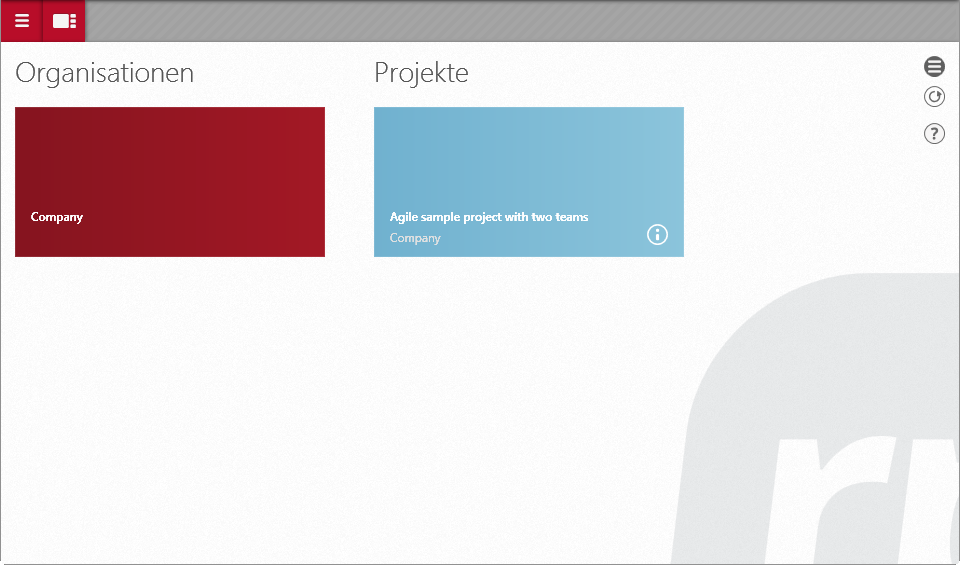
Create new group
You can create groups at any time. Descriptive group names also make it easier to navigate and allow you to find content quickly.
- To create a new group, drag and drop a tile to the right of another tile. Alternatively, you can create a new group by dragging a group between two tiles.
Dragging and dropping tiles automatically creates new groups, which are not visible until they are named.

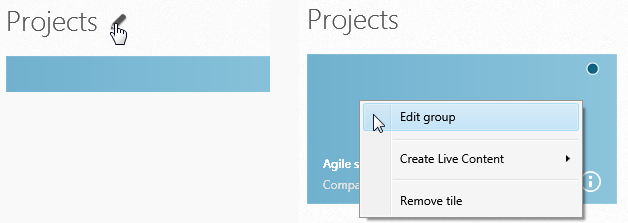
- Move the mouse over the tile until the pencil appears and click on it.

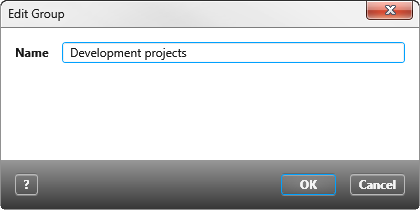
- Enter the desired name in the following dialog and confirm with OK.
The new name is immediately visible on the userboard.
Change group name
Group names can be edited at any time.
- In the context menu of a tile, click Edit group command. Alternatively, you can change the group name by clicking the pencil icon next to the name with your mouse. The pencil icon is only displayed when you hover your mouse over it.
- Enter the desired name in the subsequent dialog and confirm with OK.
The new name is immediately visible on the userboard.
