
Create Hierarchical Queries
- From the context menu of a package, select the Create other → Hierarchical Query command
- Name the query.
- Use the […] button behind Query scope to specify whether the entire project or only specific packages are to be evaluated.
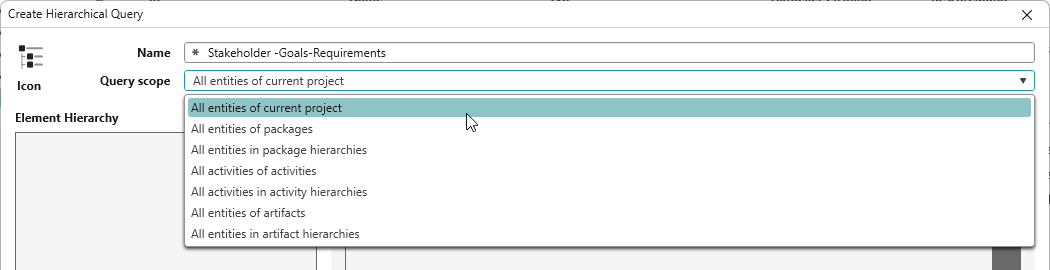
The following Context elements row is not displayed if you have specified All entities of the current project.
- Under Context elements, use the Plus button to specify one or more packages or activities.
- Now click the Edit button next to Element Hierarchy. In the subsequent dialog, select what is to be displayed in the query.
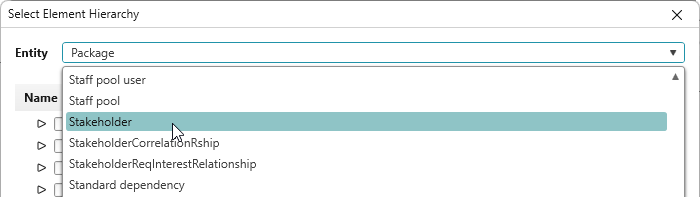
By default, the Package element type is preselected under Entity. You can select a different element type from the dropdown menu. The element type selected here can be considered the starting point of the query.
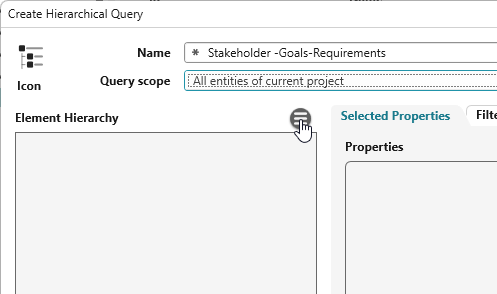
The starting point of a hierarchical query is the first element type on which the query is based. It specifies which element the query begins with and from which the hierarchy is built.
-
For example, if you select Package as the starting point, the query initially displays the packages. The elements they contain (e.g., goals or requirements) can then be displayed below them.
-
If you select Goal as the starting point, the query begins with the goals. Requirements derived from these goals, for example, can then be displayed below them.
-
If you select Requirement, the query begins with requirements, and the associated test cases or dependencies can be displayed below them.
The starting point therefore determines which elements are displayed at the top level.
- Under Name, select the element types that are to be displayed in the query.
Expand Relationships to select additional connected element types. Select the individual entities and/or relationships that exist between the elements to be displayed and that are to be shown.
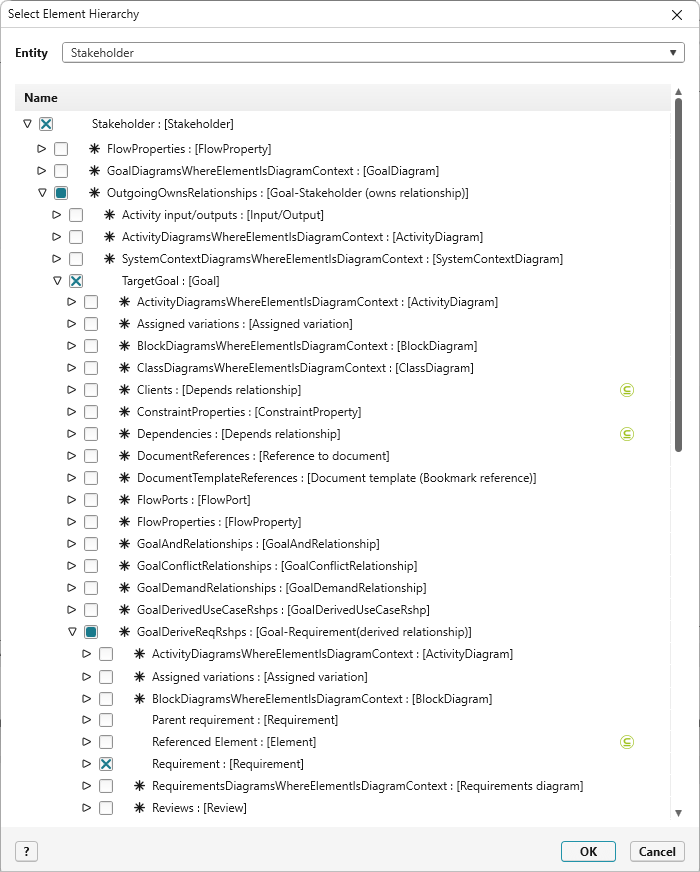
- Then click OK to add the selection to the query.
The selected entities now appear under Element Hierarchy. - Under Element Hierarchy, select an entry (not a relationship) and then click the Plus button to select the properties that are to be displayed as columns.
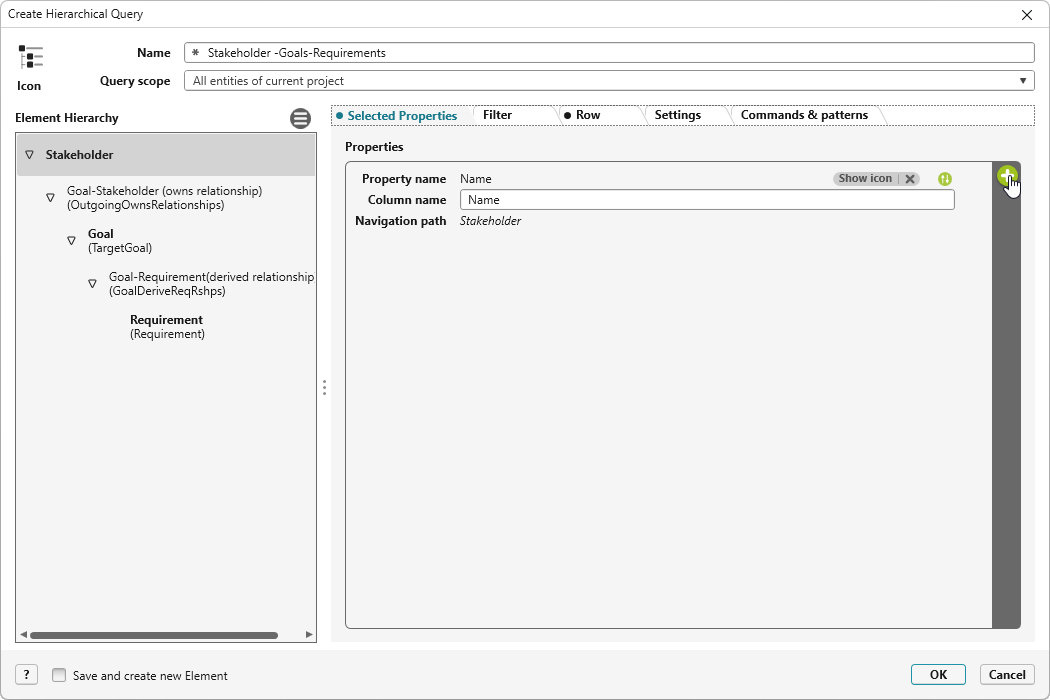
- Save the settings with OK.
Color the Overview
If you display different element types in a query, you can highlight them in different colors to make them easier to distinguish.
- Select the desired element type in the Element Hierarchy.
- Switch to the Row tab and select a color.

- Save the settings with OK.
The individual element types are displayed in the specified color. When selecting a color, make sure that the text remains clearly legible against the colored background. Therefore, choose colors with sufficient contrast to the font color whenever possible.
